
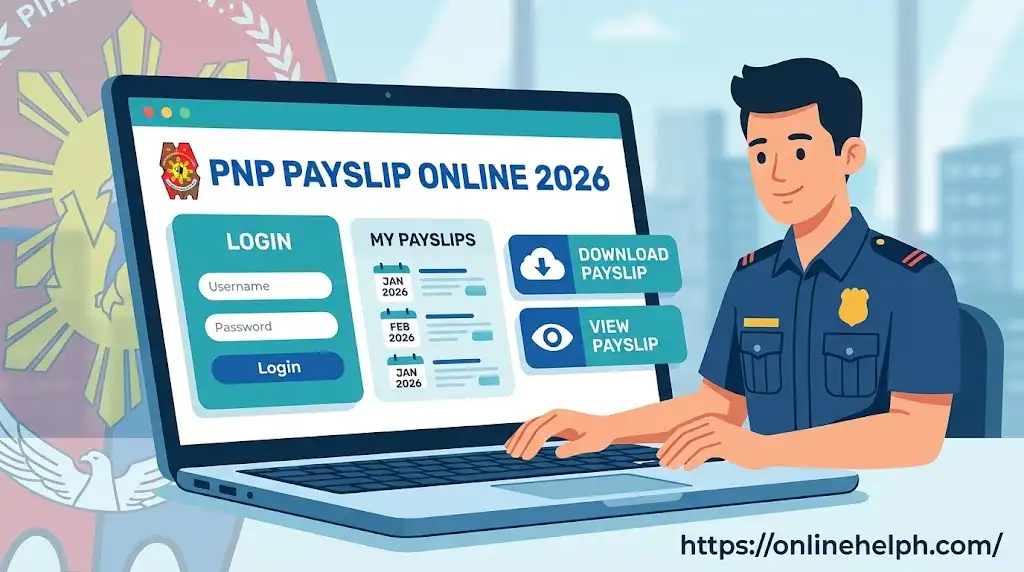
If you are a member of the Philippine National Police (PNP) and need to check your monthly salary, allowances, deductions, or net pay, the PNP Online Payslip system provides a convenient way to access your payroll information electronically. Instead of relying only on a printed salary statement, authorized PNP personnel can use the online payslip system to view information for a particular pay period and print or save a copy when needed.
The Philippine National Police payslip contains important payroll information such as basic salary, allowances, deductions, contributions, and net take-home pay. It can therefore be useful when checking whether your compensation has been credited correctly or when you need a record for administrative or financial purposes.
For users searching for Philippine National Police payslip login, PNP online payslip login, Philippine National Police payslip download, or PNP payslip online, it is important to use the correct portal and avoid entering your credentials on unofficial websites. visit for homepage
What Is the PNP Online Payslip?
The PNP Online Payslip is a digital payroll service associated with the Philippine National Police payroll and Finance Service processes. It allows authorized personnel to inquire about their salary information through an online system.
An official PNP Finance Service document describes the procedure for viewing an online payslip: personnel access the online payslip service, enter their username and password, select a pay period, generate the payslip, and print it when required.
A PNP provincial-office information-systems page also lists PNP Online Payslip separately from other PNP systems and provides the payslip login endpoint at payslip.pnppms.org.
What Can You Check on a PNP Payslip?
Depending on the payroll record and applicable compensation components, a Philippine National Police payslip may show information such as:
The exact items appearing on a particular PNP online payslip can vary according to the employee’s rank, assignment, benefits, deductions, and payroll circumstances.
PNP Online Payslip Official Website
One of the most important things to understand before attempting a Philippine National Police payslip login is the difference between an informational guide and the actual payroll portal.
The PNP provincial-office information-systems page lists the PNP Online Payslip login as:
PNP Online Payslip Login
For general information about the Philippine National Police, you can also visit the official PNP website:
Philippine National Police Official Website
The page you provided, mypoliceclearance.ph/pnp-payslip/, can be used as a supporting guide for readers who are looking for instructions, but it should not be described as the official PNP government domain. Official site
PNP Payslip Login: Requirements
Before starting the Philippine National Police payslip login, make sure you have the information and equipment necessary to access the service.
1. Internet-Connected Device
You can generally use a desktop computer, laptop, tablet, or smartphone with a reliable internet connection. A computer can be more convenient when you need to print or save your PNP online payslip.
2. Compatible Web Browser
Use an updated browser such as:
Keeping your browser updated can help prevent compatibility and security problems.
3. Registered Login Credentials
You need the username and password associated with your PNP Online Payslip account. Do not share these credentials with another person.
If you have forgotten your credentials, use the appropriate account-recovery or password-reset procedure provided by the responsible PNP Finance Service office.
4. PDF Viewer or Printing Facility
If the system generates your payslip as a printable document, having a PDF viewer installed can make it easier to review, save, or print the record.
How to Login to PNP Online Payslip
The Philippine National Police payslip login process is designed for authorized PNP personnel. Follow these general steps carefully.
Step 1: Open the PNP Online Payslip Portal
Open your preferred browser and access the PNP Online Payslip login page.
Open PNP Online Payslip Login
Before entering any sensitive information, check the address bar carefully. Do not enter your username or password into an unrelated website claiming to provide Philippine National Police payslip access.

Step 2: Enter Your Username
On the login page, enter the username associated with your PNP Online Payslip account.
Make sure there are no unnecessary spaces or typing errors. If your username is not accepted, do not repeatedly enter random credentials because this may create additional account-access problems.

Step 3: Enter Your Password
Type your registered password into the password field.
For security, avoid saving your Philippine National Police payslip password on a public or shared computer. If you are using a personal device, make sure the device is protected with a secure password or screen lock.

Step 4: Sign In
After entering your credentials, select the Login or corresponding sign-in button.
If the credentials are correct and the service is available, you should be taken into the appropriate online payslip area.

Step 5: Select the Pay Period
After logging in, locate the section used for payslip inquiry or payroll information.
According to the PNP Finance Service procedure, personnel select the relevant month and year/pay period and generate the payslip for viewing or printing.
Choose the month you want to review and generate the corresponding statement.

How to View Your PNP Payslip Online
Once you have completed the Philippine National Police payslip login, viewing your salary statement is generally straightforward.
Select the desired pay period and generate the statement. Review the information carefully before downloading or printing it.
Pay particular attention to:
Checking these details regularly can help you identify missing information or unexpected deductions more quickly.
How to Download PNP Payslip
The Philippine National Police payslip download process depends on the options displayed by the current payroll system.
After generating the required payslip:
If a direct Download PDF button is not available, the browser’s print function may provide an option to save the generated document as a PDF. The PNP Finance Service’s documented procedure also states that the generated payslip can be printed using the print function or Ctrl + P.
How to Print PNP Online Payslip
Printing a PNP online payslip can be useful when a physical salary record is required.
After opening the generated payslip, select the browser’s print option or press:
Windows: Ctrl + P
Mac: Command + P
PNP Payslip Details, Password Reset & Troubleshooting
After successfully completing the Philippine National Police payslip login, personnel can use the online system to review their salary information for the applicable pay period. Understanding the information shown on a PNP online payslip is important because it allows personnel to check their earnings, deductions, and final net pay.
The PNP Finance Service has documented the Online Payslip Inquiry process, while a 2024 PNP memorandum defines the PNP Online Payslip Portal as a web-based system through which active PNP personnel can view and access financial information.
Understanding Your PNP Online Payslip
A Philippine National Police payslip is more than a simple salary statement. It provides a breakdown of compensation and deductions associated with a particular payroll period.
The exact information displayed can differ depending on the personnel record and payroll circumstances. However, a typical payslip may contain several important sections.
1. Personnel Information
The upper portion of the PNP online payslip may contain identifying information associated with the personnel record. This can help confirm that you are viewing the correct payroll statement.
Depending on the system’s current format, information may include:
Always check these details before relying on the document for official or financial purposes.
2. Basic or Base Pay
Basic pay represents the primary salary component associated with the employee’s rank or authorized position.
This amount forms an important part of the total earnings shown on the Philippine National Police payslip. Changes in rank, salary rates, authorized adjustments, or other payroll actions may affect the amount reflected in this section.
3. Allowances and Other Earnings
Depending on eligibility and the applicable payroll period, the PNP online payslip may also contain additional compensation or allowances.
These can include authorized benefits or other compensation components applicable to the personnel concerned.
It is important not to assume that every PNP employee receives exactly the same allowances. Eligibility and payroll treatment can vary according to circumstances, assignment, applicable rules, and personnel records.
4. Government Contributions and Deductions
The deductions section shows amounts withheld from the employee’s compensation.
Depending on the individual’s circumstances, deductions may include government contributions, taxes, loan payments, and other authorized deductions.
Reviewing this section regularly is useful because it helps personnel understand why the final amount deposited into their account may differ from their gross earnings.
5. Loans and Other Authorized Deductions
A Philippine National Police payslip online record may also show deductions associated with authorized loans or other financial obligations.
If you notice a deduction that you do not recognize, do not assume that it is automatically an error. First compare it with your previous payslip or available financial records. If the discrepancy remains, contact the appropriate Finance Service or administrative office for clarification.
6. Net Take-Home Pay
The net amount is the amount remaining after applicable deductions have been subtracted from the employee’s earnings.
This is one of the most important figures on the Philippine National Police payslip because it helps personnel confirm the amount expected to be credited through payroll.
Why Check Your PNP Payslip Regularly?
Regularly reviewing your PNP online payslip can help you keep track of your financial records and identify potential discrepancies.
For example, you can compare the current statement with a previous month to determine whether:
Keeping copies of important payslips can also make it easier to investigate payroll questions later.
PNP Payslip Password Reset
One of the most common problems users encounter is losing or forgetting their login password.
However, the password-reset process should not be confused with generic website password recovery. The PNP Finance Service’s 2025 administrative handbook specifically describes a Reset of Online Payslip Password procedure for PNP personnel. It states that personnel records are verified through the Payroll Management System and outlines a process involving a valid ID and a request form handled by the Financial Information Management Division (FIMD), PNP Finance Service.
What to Do If You Forget Your PNP Payslip Password
If you cannot access your account, follow the recovery method currently provided by the PNP Online Payslip system or the responsible PNP Finance Service office.
Do not use password-reset links from random third-party websites.
If the online recovery option does not work, contact the appropriate PNP Finance Service or designated administrative office. According to the PNP Finance Service handbook, the documented password-reset service is available to PNP personnel and requires identity verification.
Password Reset Through the PNP Finance Service
The official handbook describes the following general process:
The handbook lists the Financial Information Management Division of the PNP Finance Service as the responsible office and specifies a 5-minute processing time for the documented in-office procedure.
Because procedures can change, personnel should follow the latest instructions issued by the PNP Finance Service rather than relying on an old screenshot or unofficial tutorial.
PNP Payslip Login Not Working? Try These Solutions
Sometimes the Philippine National Police payslip login page may open but refuse to authenticate the user. Before assuming that your account has a problem, check the following possibilities.
Problem 1: Incorrect Username or Password
The most common cause of a failed login is incorrect credentials.
Carefully re-enter your username and password. Check whether Caps Lock is enabled and make sure you have not accidentally added a space before or after your username.
If you recently received a temporary or replacement password, use the credentials supplied through the authorized PNP process.
Problem 2: Forgotten Password
If you cannot remember your password, use the current official recovery procedure.
Do not repeatedly guess passwords. If your account becomes inaccessible, contact the appropriate PNP Finance Service or administrative personnel for assistance.
Problem 3: Payslip Portal Is Temporarily Unavailable
An online system can occasionally become unavailable because of maintenance, technical problems, network issues, or other service interruptions.
If the login page does not load:
Problem 4: Payslip Is Not Showing
If you can log in but cannot find the expected Philippine National Police payslip, first check that you selected the correct month and year.
Also consider whether the payroll statement has already been generated for that particular period.
If an expected payslip remains unavailable, contact your unit’s authorized administrative or Finance Service personnel rather than attempting to create or modify a payroll document yourself.
Problem 5: Incorrect Salary Information
If the amount shown on your PNP online payslip appears incorrect, compare it with your previous payroll records.
Check the following:
If you still believe there is an error, provide the relevant payslip and personnel information to the appropriate Finance Service or administrative officer so the record can be reviewed.
PNP Payslip Missing for a Previous Month
If you are searching for an older Philippine National Police payslip, first use the available pay-period selection in your account.
Select the appropriate year and month and generate the statement if the system provides that option.
If an older payslip does not appear, this does not necessarily mean that the payroll record has been deleted. There may be system, account, or records-management reasons why the document is not currently displayed.
For older or missing records, contact the responsible PNP Finance Service office or your authorized administrative personnel.
Can PNP Personnel Print Their Online Payslip?
Yes. The documented PNP Finance Service procedure includes printing the generated online payslip. The procedure explains that after selecting the relevant pay period and generating the payslip, personnel can use the print function to produce a copy.
To print your PNP online payslip:
You can also use the browser’s Save as PDF option when available if you want a digital copy instead of a physical printout.
Can You Access PNP Payslip on a Mobile Phone?
A smartphone or tablet may be useful for accessing online services, provided the current Philippine National Police payslip system supports your device and browser.
For important payroll documents, however, a desktop or laptop can be more convenient because it provides a larger screen and easier PDF handling.
If you access your Philippine National Police payslip online using a mobile device, avoid using public Wi-Fi when handling sensitive personnel or financial information.
PNP Payslip Security Tips
Because a Philippine National Police payslip can contain sensitive personal and financial information, account security should be taken seriously.
Never Share Your Password
Your password should remain confidential. Do not send it to another person through social media, messaging apps, email, or text messages.
Use the Correct Portal
Always verify the website address before entering credentials. The Rizal Police Provincial Office’s official information-systems page lists the PNP Online Payslip login at:
payslip.pnppms.org/Account/Login
This is particularly important because many third-party websites publish articles about Philippine National Police payslip login and may use language such as “official portal” even when they are not PNP government websites.
Do Not Give Your Payslip to Unknown Websites
Avoid uploading your Philippine National Police payslip to websites that promise to “verify,” “generate,” or “unlock” your salary information unless the service is specifically authorized by the PNP.
Log Out After Use
When accessing your PNP online payslip from a shared computer, always log out after finishing your session.
Store Downloaded Payslips Securely
If you download a PDF copy, keep it in a protected folder. Avoid leaving sensitive payroll documents in publicly accessible folders or on shared computers.
Official PNP Sources and Useful Links
For readers looking for reliable information, it is better to link to PNP government sources whenever possible.
PNP Online Payslip Login:
https://payslip.pnppms.org/Account/Login
PNP Finance Service:
https://fs.pnp.gov.ph/
Philippine National Police Official Website:
https://pnp.gov.ph/
The mypoliceclearance.ph/pnp-payslip/ page can be used as a supplementary guide for readers, but it should not be confused with the official PNP government domain.
Important Note About PNP Payslip Registration
Some online guides claim that users can freely create a new Philippine National Police payslip account through a public “Register” button. Personnel should be cautious about following such instructions without confirming them against current PNP procedures.
The official PNP Finance Service documentation indicates that the online payslip service is intended for PNP personnel, and the password-reset procedure verifies personnel records through the Payroll Management System.
Therefore, if you do not already have authorized access, contact your unit or the appropriate PNP Finance Service office for the current account-access procedure instead of entering personal information into an unofficial registration page.
PNP Payslip vs PNP Police Clearance
The terms Philippine National Police payslip and PNP police clearance can sometimes appear together in online searches, but they are completely different services.
A Philippine National Police payslip is a payroll document intended for authorized PNP personnel. It contains compensation and deduction information.
A PNP police clearance, on the other hand, is a separate public-facing police clearance service. The National Police Clearance System provides online registration and clearance-related services for applicants.
Do not use a police-clearance account or website to attempt to access your PNP employee payslip.
Quick PNP Payslip Access Checklist
Before accessing or downloading your PNP online payslip, use this checklist:
Following these precautions makes the PNP payslip online process safer and helps personnel maintain accurate payroll records.
FAQs
Conclusion
The PNP Online Payslip provides authorized Philippine National Police personnel with a convenient way to check important payroll information, including basic pay, allowances, deductions, contributions, and net take-home pay. Instead of depending only on printed salary statements, personnel can use the online system to view the required pay period and, where available, print or save a digital copy for their records.
Whether you are looking for PNP payslip login, PNP online payslip login, PNP payslip download, or simply want to check your PNP payslip online, always use the correct and authorized portal. Before entering your username or password, carefully verify the website address and avoid unofficial websites that request sensitive personnel or financial information.
If your PNP online payslip is not showing, your login is not working, or you have forgotten your password, check the available recovery options and contact the appropriate PNP Finance Service or authorized administrative office when necessary. Keeping your payslip records secure and reviewing your earnings and deductions regularly can also help you identify payroll issues and maintain accurate financial documentation.
Read More
PAIS Admin PNP: Complete Login, Registration, Features & User Guide
NEO LMS: Complete Login, Registration, Courses & User Guide
MATATAG Curriculum Guide 2026: Website, Subjects, Downloads & K–10 Guide
CodeChum: Complete User Guide, Login, Registration, Features & Coding Platform Guide
PRC Renewal 2026: Complete LERIS Online Renewal Guide, Requirements, Fees & Steps