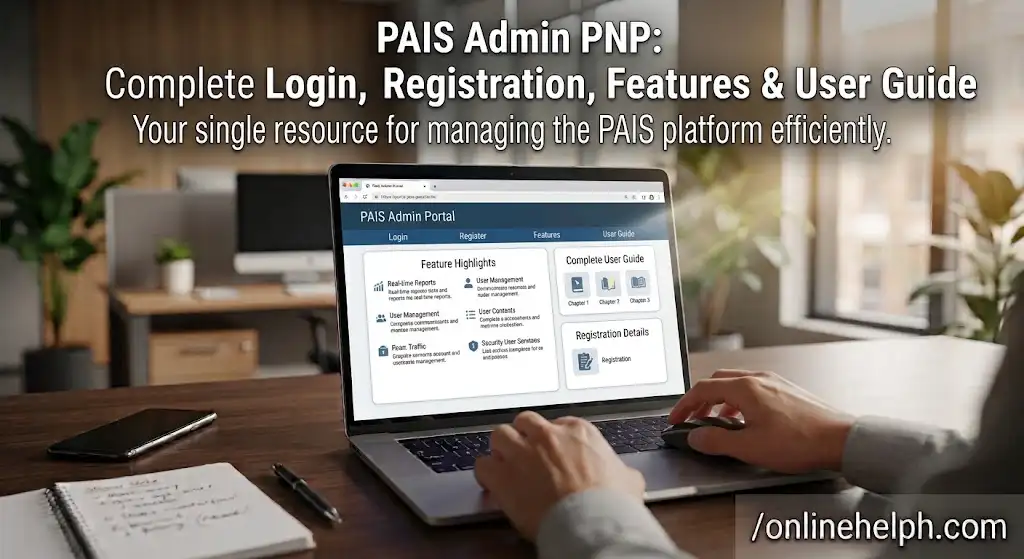
The PAIS Admin PNP portal is an administrative web system used within the Philippine National Police (PNP) to manage and maintain personnel-related information. PAIS stands for Personnel Accounting and Information System, and official PNP documents describe PAIS as a database containing information and personal circumstances of active and retired PNP personnel.
For authorized PNP personnel, administrative officers, unit encoders, and related staff, the PAIS Admin portal provides a centralized environment for working with personnel records, service information, supporting documents, orders, and administrative reports.
The official administrative portal provided for this guide is:
PAIS Admin Official Portal
Important: PAIS Admin is an administrative system intended for authorized PNP users. It is not a general public registration website where anyone can freely create an account.
What Is PAIS Admin PNP?
PAIS Admin PNP refers to the administrative side of the Personnel Accounting and Information System used by the Philippine National Police. The system supports personnel-record management and administrative processing across PNP offices and units.
The information supplied for this guide identifies the Directorate for Personnel and Records Management (DPRM) and the Information Technology Management Service (ITMS) as relevant administrative and technical offices connected with the system. The supplied user guide describes PAIS Admin as a centralized management gateway for authorized administrative officers, encoders, and unit personnel.
The broader role of PAIS is also supported by official PNP documentation. A PNP memorandum defines the Personnel Accounting and Information System (PAIS) as a database containing information or personal circumstances of active and retired PNP personnel.
PAIS is also referenced in other official PNP processes. For example, an official PNP process-flow document shows PAIS data being used in personnel-related financial processing, demonstrating that personnel information maintained through PAIS can support other PNP administrative systems. visit for homepage
PAIS Admin Official Website
If you are looking for the PAIS Admin official website, use the PNP domain shown below:
Before entering any username or password, always check the address bar carefully.
The correct portal should use:
Look for the HTTPS connection and security lock in your browser. Avoid entering PNP credentials into websites using unrelated domains or suspicious URLs.
The supplied PAIS Admin guide recommends using a secure connection and checking that the portal uses HTTPS. It also identifies Google Chrome, Mozilla Firefox, and Microsoft Edge as supported browser options. Official site
Why Use the Official PAIS Admin Website?
Using the correct website is important because PAIS Admin deals with sensitive personnel information. An incorrect or fraudulent website could expose login credentials or confidential information.
When accessing the system:
PAIS Admin Login Guide
The PAIS Admin login process is intended for personnel who already have authorized administrative credentials.
Unlike public websites that allow users to register themselves, PAIS Admin access is controlled. Your organization or authorized PNP administrator must provide the appropriate credentials and access level.
According to the supplied guide, the basic login process involves opening the PAIS Admin portal, entering an assigned administrative username and password, completing any security verification that appears, and authenticating into the dashboard.
How to Login to PAIS Admin
Follow these steps to access the PAIS Admin PNP portal.
Step 1: Open the Official PAIS Admin Website
Open Google Chrome, Mozilla Firefox, or Microsoft Edge.
Then visit:
PAIS Admin Login Portal
Make sure you are on the correct PNP domain before continuing.

Step 2: Check the Secure Connection
Before entering your credentials, check your browser’s address bar.
The website should use:
HTTPS
This helps confirm that your connection to the website is encrypted.
The supplied technical guide specifically recommends verifying the HTTPS connection before using the portal.

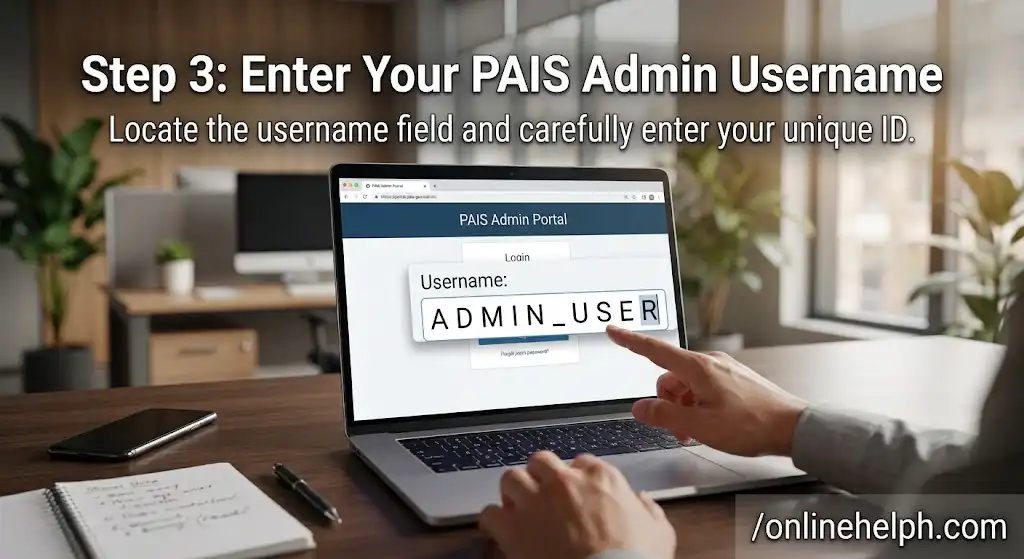
Step 3: Enter Your PAIS Admin Username
Enter the administrative username assigned to you.
Depending on your role and PNP unit, this may be an official administrative or encoder account.
Do not use another person’s credentials.
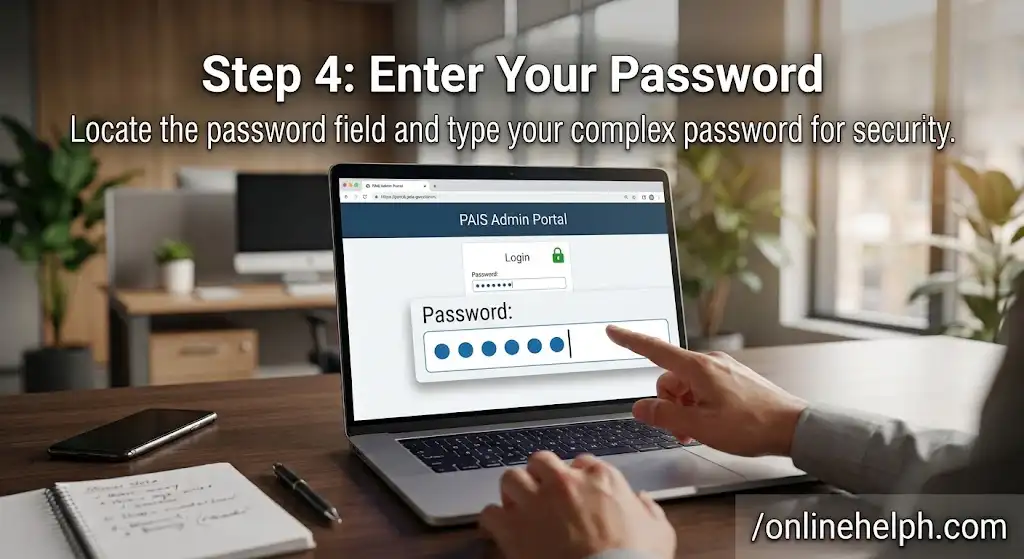
Step 4: Enter Your Password
Enter your assigned password carefully.
If your password does not work, avoid repeatedly guessing it because repeated unsuccessful attempts may result in an account lockout depending on the system’s security configuration.
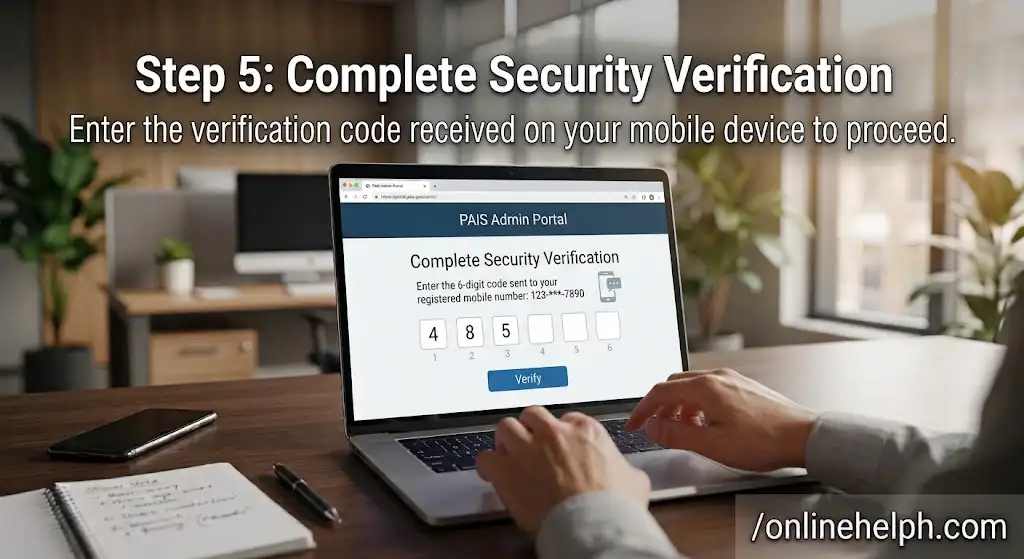
Step 5: Complete Security Verification
If the PAIS Admin portal displays a CAPTCHA, MFA, or OTP verification, complete the required security step.
The supplied guide indicates that an OTP may be sent to the user’s registered official PNP email when applicable.
Step 6: Click Login
After entering the required information, select Login or the corresponding authentication button.
If your credentials and permissions are valid, you should be taken to the PAIS Admin dashboard.

PAIS Admin Registration: Can Anyone Create an Account?
One of the most common searches surrounding the system is PAIS Admin registration.
However, PAIS Admin should not be treated like a normal public website where visitors simply click “Register” and create an account.
The supplied documentation describes administrative credentials as credentials issued through authorized PNP/ITMS/DPRM processes.
Therefore, if you are an authorized PNP employee who needs PAIS Admin access, the appropriate approach is to contact your designated:
Your exact account-provisioning procedure may depend on your PNP unit and assigned role.
PAIS Admin Registration vs Login
It is important to understand the difference:
| Term | Meaning |
|---|---|
| PAIS Admin Login | Signing into an existing authorized account |
| PAIS Admin Registration | Account provisioning for an authorized user |
| PAIS Admin Username | Identifier assigned to an authorized administrator or encoder |
| PAIS Admin Password | Private authentication credential |
| PAIS Admin Access Level | Determines which functions the user can perform |
So, if you searched for PAIS Admin registration, you generally need to obtain authorized access rather than create a public account yourself.
PAIS Admin User Roles and Access Levels
Not every PAIS Admin user has the same permissions.
The supplied PAIS Admin guide identifies different administrative roles, including Unit Encoder, RPRMD Verifier, and DPRM System Admin. Each role has a different level of responsibility and access.
1. Unit Encoder
The Unit Encoder generally works at the station or district level.
Typical responsibilities described in the supplied guide include:
The encoder is generally responsible for accurate data entry rather than unrestricted approval of sensitive changes.
2. RPRMD Verifier
The RPRMD Verifier operates at the regional or provincial level.
Responsibilities can include:
This role provides an additional verification layer before certain changes move to higher-level approval.
3. DPRM System Administrator
The DPRM System Admin operates at the national-headquarters level according to the supplied guide.
The role may include:
The supplied material specifically places critical changes such as birth-record and rank-related updates within higher-level authorization.
PAIS Admin Dashboard
After a successful PAIS Admin login, authorized users can access the administrative dashboard.
The dashboard provides access to different functions depending on the user’s assigned permissions.
According to the supplied guide, the dashboard can include:
The dashboard layout described in the supplied material includes a navigation area, pending-task/action area, search functionality, and user/session controls.
Main Navigation
The left-side navigation can provide access to different administrative modules.
Depending on the user’s permissions, these may include personnel management, orders, reports, and system utilities.
Pending Tasks
The dashboard can display pending requests and records requiring review or action.
This helps authorized personnel identify incomplete submissions and administrative requests that need attention.
Personnel Search
The supplied guide describes a search function that can be used to locate personnel records using information such as:
This can make it easier for authorized staff to locate the correct personnel record without manually searching through large numbers of files.
Session Controls
The dashboard also includes controls associated with the logged-in account.
Always use the system’s Logout/Sign Out function when finished, particularly when using a shared or office computer.
PAIS Admin Main Features
The PAIS Admin PNP system is designed around personnel and administrative record management.
Based on the supplied user guide, the major functions include the following.
Personnel Data Management
Authorized personnel can work with official personnel information, including:
The supplied documentation identifies personnel record management as one of the core administrative functions of the system.
Data Alteration and Corrections
Some personnel information may require formal correction or alteration.
Examples mentioned in the supplied material include:
These changes may require supporting documentation and review by the appropriate authority rather than being freely edited by every PAIS Admin user.
Service Records and Orders
PAIS Admin can also support administrative processing associated with:
The supplied guide also describes the generation of verified digital copies of PNP Service Records as part of the relevant administrative functions.
Reports and Analytics
Administrative reports can provide useful information for authorized PNP offices.
The supplied guide mentions:
These features allow authorized personnel to organize personnel information for administrative and command-reporting purposes.
PAIS Admin Security and Data Privacy
Because PAIS Admin deals with personnel information, account security is especially important.
Users should never:
The supplied guide states that administrative credentials are individual and non-transferable and connects system access with PNP security requirements and the Data Privacy Act of 2012 (Republic Act No. 10173).
The safest approach is to use only your assigned account and follow your unit’s official security procedures.
Official PNP Resources
For broader PNP information and official documents, you can also use the Philippine National Police’s official web properties.
PNP Directorate for Personnel and Records Management
Official PNP documentation confirms the role of PAIS in maintaining personnel information.
For technical matters related to the system, the supplied guide identifies ITMS support as an escalation point and provides the ITMS website:
PNP ITMS Portal
PAIS Admin Personnel Data Management
One of the central functions of PAIS Admin PNP is personnel data management.
Personnel records can contain many types of information, so accurate encoding and careful verification are important. The supplied PAIS Admin guide specifically lists Police Personal Data Sheets (PDS), education, eligibility, training, awards, beneficiaries, and dependent ID applications among the functions associated with personnel record management.
Personal Data Sheet (PDS)
The Personal Data Sheet (PDS) is an important part of a personnel record.
Authorized PAIS Admin users may be responsible for creating, processing, or updating PDS information according to their assigned permissions.
When entering information, users should carefully check:
Accurate encoding is important because incorrect information can create problems during later verification or administrative processing.
PDS Data Accuracy
Before submitting or saving an update, carefully review the information.
For example, check whether:
If an important record requires formal correction, do not assume that every field can be directly changed by a Unit Encoder.
PAIS Admin Educational and Training Records
The PAIS Admin system can also be used for information related to a person’s professional background.
The supplied guide specifically includes:
within personnel record management.
These records can be important when personnel information is reviewed for administrative purposes.
Educational Background
Authorized users may encode relevant educational information according to the available PNP procedures and the user’s access level.
Civil Eligibility
Civil eligibility information can also form part of a personnel record.
Training and Awards
Training achievements and awards may be recorded to maintain a more complete personnel profile.
Because these records may require verification, users should keep the relevant supporting documentation available when a submission or update requires attachments.
PAIS Admin Beneficiary and Dependent Information
Another function described in the supplied guide involves legal beneficiaries and dependent ID applications.
Authorized personnel may process applicable beneficiary information and dependent ID-related requests through the system.
These records should be handled carefully because they can involve personal information belonging not only to PNP personnel but also to family members or dependents.
Users should therefore follow their organization’s document-verification and privacy procedures when processing this information.
PAIS Admin Data Correction and Alteration
A particularly important area of PAIS Admin PNP is the processing of corrections to sensitive personnel information.
The supplied guide identifies examples such as:
These are not necessarily ordinary edits available to every user.
The provided material states that certain birth-record and data-alteration requests require evaluation and higher-level approval.
How PAIS Admin Data Corrections Work
A general administrative workflow can involve:
Personnel Record → Correction Request → Supporting Documents → Verification → Appropriate Approval → Updated Record
The exact workflow depends on the type of correction and the user’s authority.
Example: Name Correction
If a personnel record contains an incorrect spelling of a legal name, the correction should be supported by the appropriate official documentation.
The encoder should not simply change sensitive information without following the required review process.
Example: Birth Information
Birth information is especially sensitive.
The supplied PAIS Admin guide indicates that birth-record changes require appropriate evaluation and higher-level approval.
Therefore, if a user sees an Access Denied message when attempting a sensitive alteration, it may indicate that the action requires a higher authorization level.
PAIS Admin Supporting Documents
Supporting documents can be important when submitting or verifying personnel-record changes.
Depending on the transaction, the supplied material refers to documents such as:
The correct documents depend on the specific transaction.
Document Upload in PAIS Admin
When the portal requires an attachment, make sure that:
The supplied guide recommends compressing PDF/JPEG attachments when an upload exceeds the stated 2 MB per-file limit.
Important: File-size limits and accepted formats can change as systems are updated. If the live portal displays different requirements, follow the requirements shown by the official system.
PAIS Admin Service Records
Service Record management is another major function described in the supplied material.
The system can support administrative information associated with:
The supplied guide also describes generating verified digital copies of PNP Service Records.
Why Service Records Matter
A service record provides an organized history of relevant personnel information.
For administrative users, maintaining accurate service information can help ensure that subsequent personnel processes are based on the correct record.
When updating service information, users should verify the applicable order or official document before encoding the change.
PAIS Admin Orders and Assignments
The Orders and Assignments functions can support changes associated with a PNP member’s official status or assignment.
Examples mentioned in the supplied guide include:
These transactions should be based on the applicable official orders.
Basic Administrative Workflow
A typical process may look like this:
Receive Official Order → Locate Personnel Record → Verify Information → Encode Applicable Change → Submit for Review → Approval → Updated Record
The actual sequence may vary according to the user’s role and the specific PNP procedure.
PAIS Admin Promotion Records
Promotion-related information is another area where authorization is important.
The supplied guide identifies promotion orders and rank updates among functions requiring appropriate administrative processing. It also indicates that critical rank-related changes may require higher-level approval.
For this reason, users should not attempt to bypass the approval structure.
If a rank update is unavailable from a user’s account, that does not necessarily mean the system is malfunctioning. It may simply mean the account does not have sufficient privileges.
PAIS Admin Reports and Analytics
The PAIS Admin reporting functions help authorized offices organize personnel information for administrative and command-reporting purposes.
The supplied guide lists Unit Strength Reports, personnel summaries, audit logs, and export functions among the reporting capabilities.
Depending on permissions and the system’s current functionality, reports can include information about:
Unit Strength Reports
Unit strength information can help authorized offices understand the personnel composition of a particular unit.
The supplied material identifies categories including Active, Inactive/Non-Effective, Retired, and Detailed reporting.
These reports may be useful for administrative monitoring and official reporting.
Exporting Reports
The supplied guide states that personnel summary information can be exported in formats such as:
The exact export options available can depend on the current portal version and user permissions.
PAIS Admin Search Function
Finding the correct personnel record is an essential part of administrative work.
The supplied guide describes a search function that can locate personnel using identifiers such as:
Tips for Searching PAIS Admin Records
When searching:
This is particularly important when multiple personnel have similar names.
PAIS Admin Approval Process
Not every PAIS Admin transaction is completed immediately.
Some requests can require review by another authorized user or office.
The supplied role structure provides a useful overview:
| PAIS Admin Role | General Responsibility |
|---|---|
| Unit Encoder | Initial encoding and document submission |
| RPRMD Verifier | Review and verification |
| DPRM System Admin | Higher-level approval and system administration |
This layered structure helps prevent unauthorized changes to sensitive personnel records.
Why Is My PAIS Admin Request Pending?
A request may remain pending because:
If a request is pending, users should follow their unit’s established administrative escalation procedure rather than repeatedly submitting the same request.
PAIS Admin Access Denied Error
One of the common problems users may encounter is:
“Access Denied” or “Insufficient Privileges.”
According to the supplied guide, this can occur when a user attempts to perform an operation reserved for a higher authorization level.
What Should You Do?
If you receive an access-denied message:
Do not attempt to circumvent the system’s permission control
PAIS Admin File Upload Problems
Another possible issue is a failed document upload.
The supplied troubleshooting guide identifies oversized or unsupported attachments as possible causes. It recommends compressing scanned PDF/JPEG files below 2 MB per attachment when the stated limit is encountered.
If PAIS Admin Rejects Your File
Try the following:
If the problem continues, contact your designated technical support personnel.
PAIS Admin Session Expired Error
A Session Expired message can occur when a user has been inactive or when the connection between the browser and portal is interrupted.
The supplied guide identifies inactivity timeout and unstable network connectivity as possible causes.
How to Fix a PAIS Admin Session Error
If your session expires:
If the same problem happens repeatedly, report it to your authorized ITMS support contact.
PAIS Admin Password and Account Problems
If you cannot log in, the issue may involve:
The supplied troubleshooting information recommends using the appropriate password-recovery mechanism through the official PNP email or contacting the local ITMS administrator for account-unlock assistance.
Do Not Share Your Password
Your PAIS Admin credentials should remain private.
Never send your password through:
If someone claims to be technical support and asks for your password, verify their identity through your official PNP channels before taking any action.
PAIS Admin and Data Privacy
Personnel information must be handled responsibly.
The supplied guide specifically references Republic Act No. 10173, the Data Privacy Act of 2012, in connection with administrative-account security.
For PAIS Admin users, good security practices include:
These practices help reduce the risk of unauthorized access to personnel information.
PAIS Admin Best Practices for Encoders
If you are a PAIS Admin Unit Encoder, accuracy should be your priority.
Before submitting information:
Verify the Record
Make sure you selected the correct personnel.
Verify the Document
Check that the supporting document belongs to the transaction.
Check Spelling and Dates
Small data-entry mistakes can create larger problems later.
Review Before Submission
Read the complete entry before clicking the final submission button.
Follow the Approval Chain
Do not attempt to perform an action outside your assigned authority.
Protect Personnel Information
Only access information required for your official duties.
PAIS Admin for RPRMD Verifiers
For users working as RPRMD Verifiers, the emphasis is on review and verification.
The supplied guide describes this role as reviewing submitted records and supporting documents and conducting preliminary approval of personnel-data modifications.
A verification workflow can therefore involve:
Review Record → Check Supporting Documents → Validate Information → Approve/Return → Forward When Required
The verifier should ensure that submitted information is consistent with the supporting documentation before allowing the transaction to proceed.
PAIS Admin for System Administrators
The DPRM System Admin role has broader responsibilities than an ordinary encoder.
The supplied material associates this role with higher-level approval of critical changes, database management, and user-role administration.
Because these permissions can affect sensitive personnel information and user access, system-administration activities should be performed only by authorized personnel following applicable PNP procedures.
PAIS Admin Quick Reference
| Function | Purpose |
|---|---|
| Personnel Management | Maintain authorized personnel information |
| PDS Management | Create/process Personal Data Sheets |
| Education Records | Maintain educational information |
| Training Records | Record applicable training achievements |
| Beneficiary Information | Process applicable beneficiary/dependent records |
| Data Alteration | Process authorized corrections |
| Service Records | Maintain relevant service information |
| Orders | Process assignments, promotions, and status changes |
| Search | Find personnel records |
| Reports | Generate personnel and unit reports |
| Document Upload | Attach supporting records |
| Approval Workflow | Route transactions to authorized reviewers |
FAQs
Conclusion
PAIS Admin PNP serves as a central administrative system for authorised Philippine National Police personnel who need to handle personnel information and related records. Its functions can support activities involving PDS information, service records, orders, document submissions, administrative reports, and personnel-record management, depending on the user’s assigned access and role.
For anyone searching for PAIS Admin PNP login, PAIS Admin registration, or the official PAIS Admin website, the key point is to use only the authorised PNP portal and confirm that you are accessing the correct website before entering your credentials. PAIS Admin is not a general public registration service, so account access should follow the procedures established by the PNP and the user’s assigned responsibilities.
Read more
NEO LMS
MATATAG Curriculum Guide 2026
MATATAG Curriculum Guide 2026
MAAG Curriculum Guide 2026