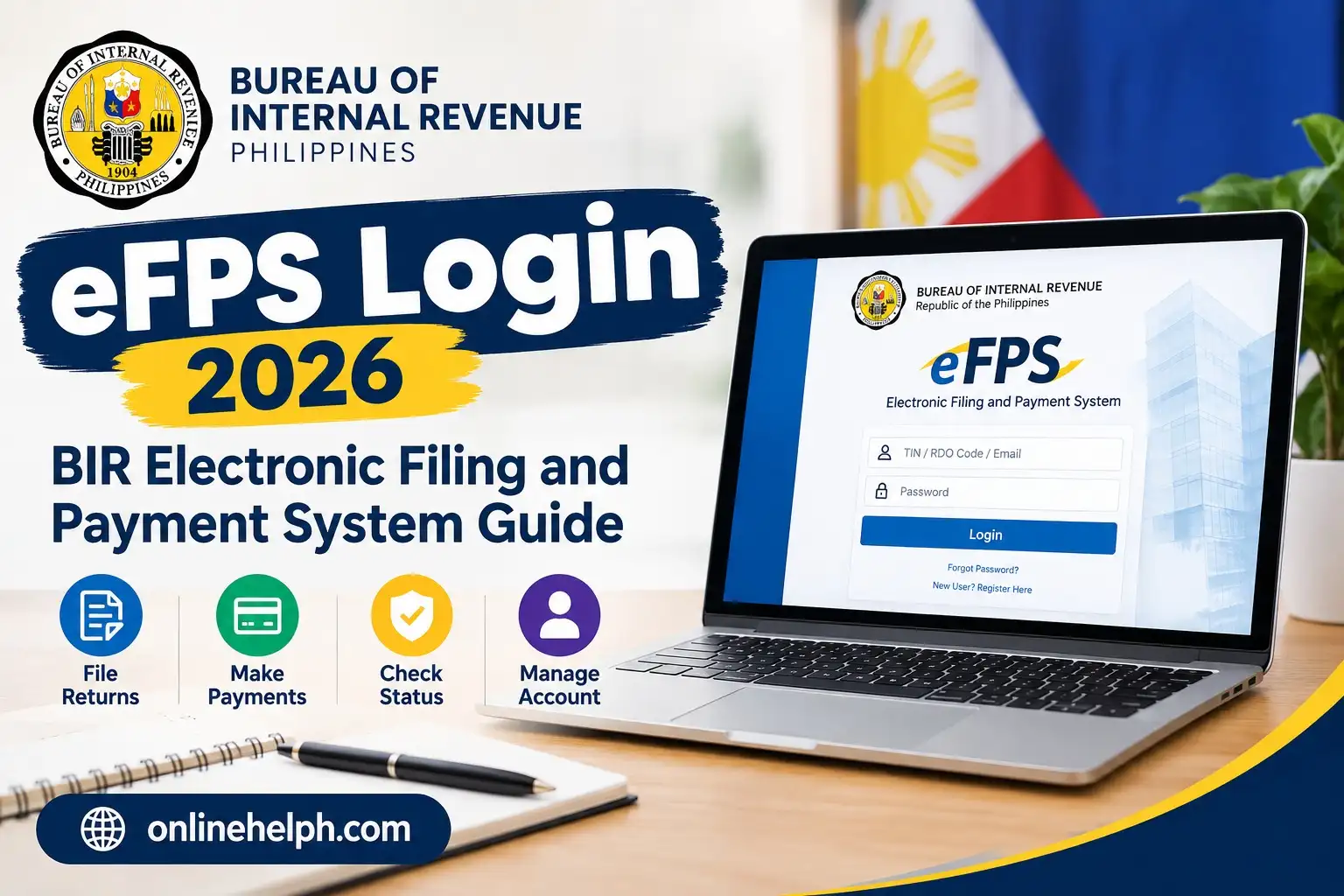
The efps bir gov ph login is the online access point for the Bureau of Internal Revenue (BIR) Electronic Filing and Payment System (eFPS) in the Philippines. The system allows eligible or required taxpayers to electronically file tax returns and, where applicable, process tax payments through the system and participating Authorized Agent Banks (AABs).
For taxpayers, business owners, accountants, and authorized representatives, knowing how to complete an efps bir gov ph login correctly can make regular tax compliance much easier. Instead of relying entirely on paper-based filing, enrolled taxpayers can use the BIR’s electronic system to access tax-filing services online. visit homepage for more
What Is BIR eFPS?
The Electronic Filing and Payment System (eFPS) is a BIR electronic service designed to facilitate online tax filing and payment.
Through an active eFPS account, taxpayers can access functions related to electronic filing, payment, tax-return inquiries, and account management. The official eFPS portal also provides taxpayer job aids covering areas such as enrollment, login, e-filing, e-payment, and tax-return inquiry.
The system is particularly useful for taxpayers who are required to use eFPS or those who have voluntarily enrolled in the service.
Official eFPS Login Website
You can access the official efps bir gov ph login page here:
Official BIR efps bir gov ph login Portal
The current official login page asks users for their TIN, username, and password and states that the username and password are case-sensitive.
You can also access the main BIR website for official announcements and electronic services:
Bureau of Internal Revenue (BIR) Official Website
Who Can Use eFPS?
Not every taxpayer can simply create an eFPS account and immediately start filing. Access depends on BIR requirements and enrollment.
BIR guidance states that eFPS is used by taxpayers mandated to use the system or those who voluntarily opt to enroll.
Generally, you should have the following before attempting an efps bir gov ph login:
- A valid and registered Taxpayer Identification Number (TIN)
- An approved eFPS enrollment
- Your registered eFPS username
- Your eFPS password
- Access to the email associated with your BIR registration/account
- A compatible web browser
- An appropriate bank arrangement if you will make payments through eFPS
For payment through eFPS, BIR guidance states that enrolled taxpayers need to maintain an account with an eFPS Authorized Agent Bank (AAB).
eFPS Login Requirements
Before starting your efps bir gov ph login, make sure your account information is ready.
1. Registered TIN
Your TIN is required on the efps bir gov ph login screen. Enter it in the format requested by the portal.
The official efps bir gov ph login page displays the TIN fields separately and also requires a username and password.
2. eFPS Username
Your username must match the account information associated with your eFPS enrollment.
Keep your username secure and do not share it with unauthorized people.
3. Password
Your eFPS password is case-sensitive, so check uppercase and lowercase characters carefully when logging in.
4. Compatible Browser
The officialefps bir gov ph login page provides browser requirements and currently lists Mozilla Firefox and Google Chrome among its supported browsers.
If the portal does not load correctly, make sure JavaScript and cookies are enabled and consider using an updated browser.
How to Login to eFPS Online
The efps bir gov ph login process is straightforward when you already have an approved account.
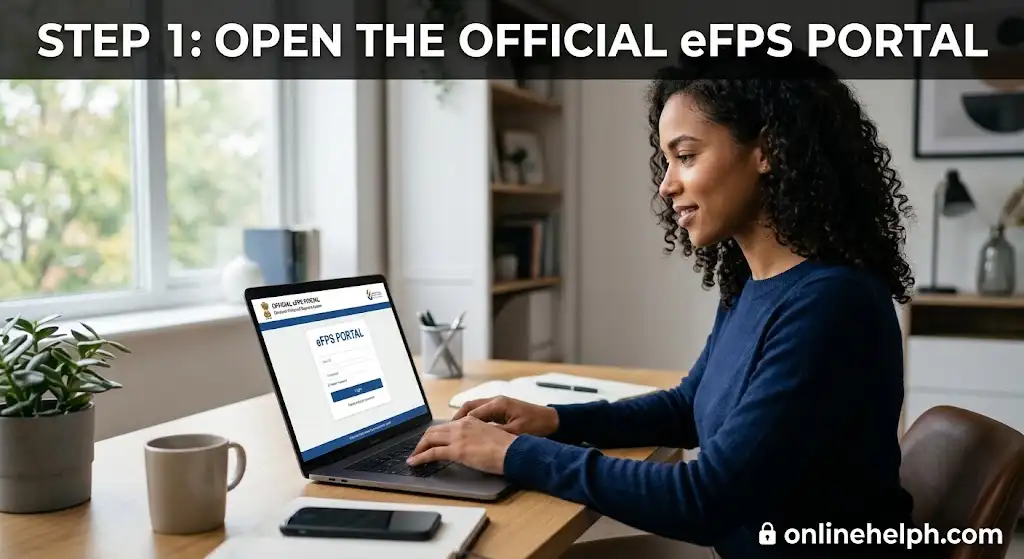
Step 1: Open the Official eFPS Portal
Start by opening the official BIR eFPS website:
efps bir gov ph login Page
Check the website address carefully before entering your credentials.
Step 2: Enter Your TIN
On the efps bir gov ph login page, enter your TIN in the designated fields.
Double-check the numbers before continuing. A wrong TIN can prevent the system from recognizing your account.

Step 3: Enter Your Username
Type your registered eFPS username into the username field.
Remember that the official portal indicates that the username is case-sensitive.

Step 4: Enter Your Password
Enter your eFPS password exactly as registered.
Be careful with:
- Uppercase letters
- Lowercase letters
- Numbers
- Special characters
- Accidental spaces
- Caps Lock
Never share your eFPS password with another person simply to get help with login.

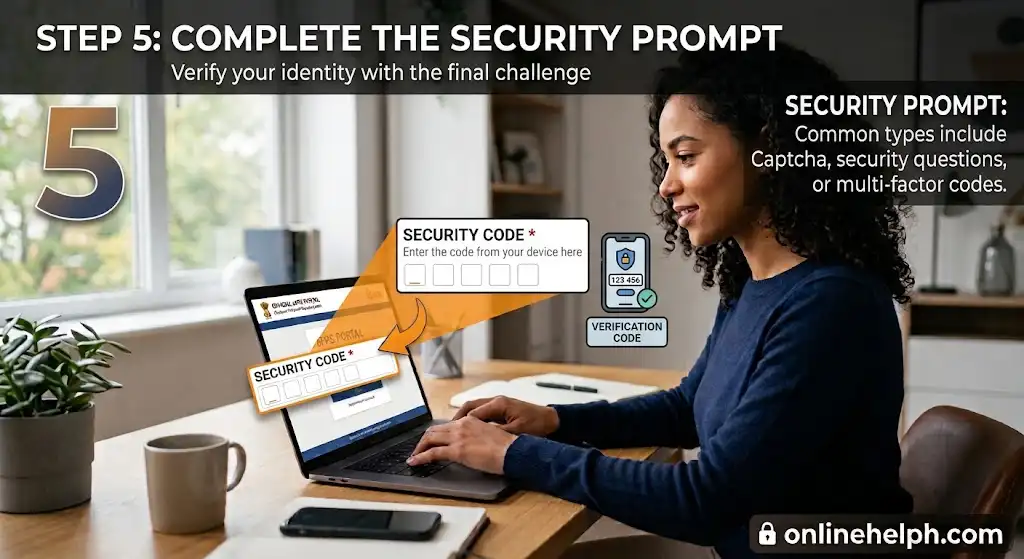
Step 5: Complete the Security Prompt
Depending on what the system displays, complete any security or challenge prompt required by the portal.
The eFPS system has a challenge-question page, where the answer is also identified as case-sensitive.
Step 6: Click “Logon”
After checking all your information, click Logon.
If your credentials are accepted, you should be taken to your eFPS taxpayer menu.
The official eFPS system provides access to functions such as filing tax returns and tax-return inquiry.

What Can You Do After eFPS Login?
Once you successfully complete yourefps bir gov ph login the available options depend on your taxpayer account and the services applicable to you.
Common eFPS functions include:
Electronic Tax Filing
Taxpayers can use eFPS to electronically prepare and submit applicable BIR tax returns and payment forms.
The official BIR eFPS job-aid section includes guides for several forms and specifically provides materials for e-Filing and e-Payment.
Electronic Payment
Where applicable, eFPS can connect the taxpayer with an AAB’s electronic payment facility.
BIR guidance explains that taxpayers enrolled in eFPS must enroll and maintain an account with an eFPS-AAB for electronic payment through the system.
Tax Return Inquiry
The system provides tax-return inquiry functionality that allows users to check previously submitted returns and related information.
The official eFPS portal includes a Tax Return Search facility for retrieving return information.
Filing Reference Number
After filing, taxpayers should carefully retain their Filing Reference Number (FRN) and other transaction records. These records can be useful when tracking or verifying completed filing and payment activities.
eFPS Enrollment Before Login
If you do not have an eFPS account yet, you may need to complete enrollment before an eFPS login will work.
The official eFPS enrollment page provides an enrollment form with sections for taxpayer details, account details, and verification.
Official eFPS Enrollment Page
The enrollment process may require information such as your TIN, registered name, taxpayer details, address, contact number, and reason for e-filing.
After submitting the enrollment information, the official page indicates that BIR will process the enrollment and that the taxpayer should wait for an email notification regarding the status.
Important: Having a TIN does not automatically mean that you have an active eFPS account. You need the appropriate eFPS enrollment/approval before using the account for login and electronic filing.
What If You Cannot Access eFPS?
If the eFPS login page is unavailable or you receive an error, don’t immediately assume that your account has been deactivated.
Possible causes include:
- Incorrect username or password
- Browser problems
- Temporary system availability issues
- Incorrect account information
- An inactive or unapproved account
- Network problems
The BIR maintains an official eServices Advisories page where taxpayers can check notices concerning eFPS availability and accessibility.
BIR eServices Advisories
Forgot Password, Filing, Payment & Common Problems
If you have already completed your eFPS login, the next important step is understanding how to recover your account, file a return, make an electronic payment, and deal with common login problems.
Forgot Your eFPS Password?
If you cannot remember your password, use the recovery option available on the official eFPS portal rather than creating another account.
Open the official eFPS Login Portal and look for the password-recovery option provided on the login page.
Before starting recovery, have your registered account information available.
A typical recovery process involves:
- Opening the official eFPS login page
- Selecting the password-recovery option
- Providing the requested account information
- Answering the security questions, if prompted
- Following the instructions provided by the system
- Creating or receiving the required replacement credentials
- Returning to the eFPS login page and signing in again
Tip: Because eFPS credentials are sensitive, never give your password or security-question answers to someone claiming to provide unofficial technical support.
Forgot Your eFPS Username?
A forgotten username can also prevent a successful eFPS login.
First, check the email account associated with your eFPS enrollment for previous BIR/eFPS communications. Search for terms such as:
- eFPS
- BIR
- Enrollment
- Username
- Account approval
If you still cannot identify the username, contact the appropriate BIR office or eFPS support channel and provide the information needed to verify your taxpayer account.
For official BIR contact information and taxpayer assistance, use the BIR Contact Us page.
How to File a Tax Return Using eFPS
One of the main reasons taxpayers use eFPS is electronic tax filing.
After a successful eFPS login, eligible users can access the applicable electronic filing functions from their taxpayer account.
The exact form available to you depends on your registration, tax type, and filing obligations.
Step 1: Log In to eFPS
Go to the official eFPS portal and enter your registered TIN, username, and password.
Step 2: Open the e-Filing Function
From the taxpayer menu, select the appropriate option for electronic filing.
Choose the tax return or form applicable to your transaction.
Step 3: Enter the Required Information
Carefully provide the requested information.
Depending on the return, this can include:
- Taxpayer information
- Taxable period
- Gross sales or receipts
- Taxable income
- Tax deductions
- Tax credits
- Tax due
- Other required details
Review the information before submitting the return.
Step 4: Calculate the Tax Due
The eFPS form can calculate applicable amounts based on the information entered.
However, taxpayers should not blindly rely on an automatic calculation. Review the figures and make sure they correspond with your accounting records and applicable BIR requirements.
Step 5: Submit the Return
After reviewing the completed form, follow the eFPS instructions to submit the return electronically.
Keep a copy of the transaction details and confirmation information generated after successful filing.
Step 6: Save the Filing Reference Number
After filing, save your Filing Reference Number (FRN) and other confirmation details.
It is a good practice to keep electronic and/or printed records of your completed transactions.
How eFPS Payment Works
Electronic filing and electronic payment are related but should not be treated as exactly the same process.
For taxpayers using eFPS payment facilities, BIR rules and procedures may require an account with an eFPS Authorized Agent Bank (AAB).
The BIR has published guidance concerning eFPS payment and participating AAB arrangements. Before making a payment, check the latest BIR instructions applicable to your taxpayer account.
You can consult the official BIR eServices information for current electronic-service information.
Basic eFPS Payment Flow
The general process can be understood as:
eFPS Login → Prepare Return → Submit Return → Obtain Filing/Payment Information → Complete Payment → Save Confirmation
The exact screens and payment options can vary depending on the taxpayer and applicable BIR requirements.
Why Save Payment Confirmation?
Always retain evidence of completed payments.
Keep records such as:
- Filing Reference Number
- Payment confirmation
- Date and amount paid
- Tax return information
- Bank transaction reference
- Confirmation receipts
These records can be valuable if you later need to verify a transaction or reconcile your tax records.
eFPS Filing Reference Number (FRN)
The Filing Reference Number (FRN) is an important transaction reference generated through the electronic filing process.
After completing an eFPS login and submitting a tax return, do not simply close the browser without recording your transaction information.
Save the FRN and any available confirmation receipt.
A useful record-keeping system is to create a folder for each tax period and retain:
Tax Return + FRN + Payment Confirmation + Supporting Records
This makes future verification and accounting reconciliation easier.
Common eFPS Login Problems and Solutions
Even when your account is active, you may occasionally experience problems during eFPS login.
“Invalid User ID / Password”
This is one of the most common login problems.
Possible causes include:
- Incorrect username
- Incorrect password
- Incorrect TIN
- Caps Lock enabled
- Typographical errors
- Using outdated credentials
What to Do
Re-enter your credentials carefully.
Remember that the official eFPS login page states that the username and password are case-sensitive.
If you still cannot access the account, use the available password-recovery procedure instead of repeatedly guessing your password.
eFPS Account Is Locked
Repeated unsuccessful login attempts can result in account-access problems.
If your account becomes locked, avoid continuously attempting different passwords.
Instead:
- Stop repeated login attempts.
- Check whether the portal provides an account-recovery option.
- Use the official password-recovery process where available.
- Contact the appropriate BIR/eFPS support channel if the problem continues.
Do not rely on unofficial websites offering to “unlock” your BIR account.
eFPS Page Not Loading
Sometimes the issue is not your account at all.
The website may fail to load because of:
- Temporary technical problems
- Browser cache
- Cookies
- Internet connection
- High traffic
- Browser compatibility
- Temporary system maintenance
Try These Fixes
Refresh the page:
Reload the official eFPS login page.
Clear browser data:
Clear cached files and cookies if the page repeatedly fails to load.
Try another supported browser:
The eFPS system provides browser-related requirements on its official portal.
Check your internet connection:
Make sure your connection is stable.
Try again later:
If BIR systems are experiencing temporary service issues, waiting and checking again may be necessary.
You can also check official BIR eServices Advisories for system-related notices.
eFPS “Session Expired” Error
A session-expired message can appear when a user remains inactive or when the current browser session is no longer valid.
If this happens:
- Close the affected eFPS tab.
- Open a fresh browser tab.
- Go to the official eFPS login page.
- Enter your credentials again.
- Continue your transaction.
Avoid keeping numerous eFPS sessions open simultaneously.
If you are completing a tax return, save your work whenever the system provides an appropriate save or draft function.
HTTP 500 or Server Error
An HTTP 500 message generally indicates that the server encountered an internal problem.
This does not necessarily mean your TIN or account is incorrect.
Try:
- Refreshing the page
- Opening a new browser session
- Clearing cache/cookies
- Checking your internet connection
- Trying again later
- Checking BIR advisories
If the problem continues, contact BIR through its official taxpayer-support channels.
eFPS Account or User Profile Is Inactive
If the system indicates that your account or user profile is inactive, do not create a second account without first determining why the original account is inactive.
The issue may require assistance from BIR or the appropriate office responsible for your taxpayer account.
When contacting BIR, have relevant account information available so the support representative can properly identify the issue.
Use the official BIR Contact Us page for current contact information.
eFPS Login Safety Tips
Because your eFPS account is connected to tax information, account security is extremely important.
Use Only the Official Website
Always verify that you are accessing the official BIR/eFPS domain before entering credentials.
Official eFPS:
https://efps.bir.gov.ph/
Never Share Your Password
BIR/eFPS credentials should be treated as confidential.
Do not send your password through:
- Facebook Messenger
- Public comments
- Unofficial support forms
Avoid Saving Credentials on Shared Computers
If you use a public or shared computer, do not allow the browser to save your eFPS password.
Always log out when finished.
Be Careful With Fake Websites
Search engines and social media can contain unofficial pages discussing BIR services. For actual login, prioritize the official BIR/eFPS domain.
Quick eFPS Login Checklist
Before starting your eFPS login, check:
- ✅ You have your registered TIN
- ✅ Your eFPS enrollment is active/approved
- ✅ You know your username
- ✅ You know your password
- ✅ Your browser is updated
- ✅ Your internet connection is stable
- ✅ You are using the official BIR/eFPS website
- ✅ You have access to the required payment facility if making an e-payment
- ✅ You will save your FRN after filing
- ✅ You will save payment confirmation after payment
This simple checklist can prevent many common login and filing mistakes.
FAQs
Conclusion
The BIR eFPS login is an important gateway for taxpayers who need to manage their electronic tax filing and payment obligations online. With an active account, you can access applicable tax returns, submit filings, check transaction information, and complete eligible electronic payment processes without relying entirely on paper-based procedures.
To avoid unnecessary problems, always make sure your TIN, username, password, and eFPS enrollment are correct before logging in. If you encounter an error, check your browser, internet connection, account status, and the latest BIR advisories before trying again. Most importantly, use only the official BIR eFPS website and keep your login credentials confidential.
Read more
NBI Clearance Renewal 2026: Online Registration, Requirements, Appointment, Fees & Complete Guide
PAIS PNP Online 2026: Login, Registration, Personnel Data & Complete User Guide
PNP Payslip Online 2026 Login, Download & View PNP Online Payslip
DMW / POEA eRegistration 2026: Complete Online Registration, Login & User Guide
MMDA NCAP 2026: May Huli Ka Online, How to Check Violations, Fines & Complete Guide