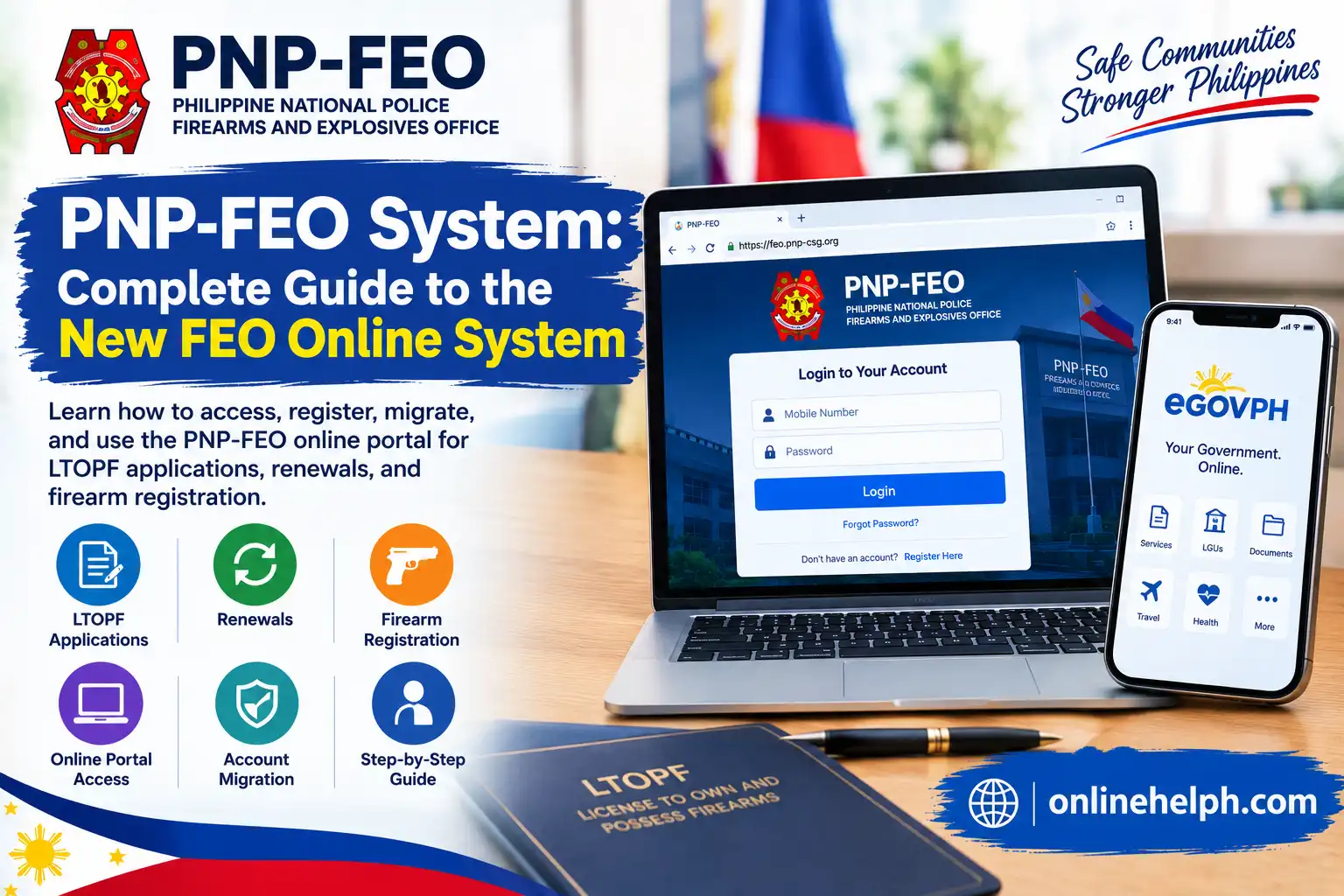
The PNP-FEO System is the Philippine National Police Firearms and Explosives Office’s online platform for managing firearms-related licensing and registration services. The new system introduced an updated login and account-security process, including an authenticator-based verification step for existing users.
The official new FEO website identified in the available FEO user material is feo.pnp-csg.org. The supplied guide specifically shows the sequence: log in, click Begin, confirm the account, set up an authenticator using a QR code, enter the authenticator number, and, where required, change the 2×2 photo or reset the password.
New PNP-FEO Online System
Important: This guide explains how the online system works and how users can navigate it. Firearms licensing, possession, registration, and related permits are regulated activities. Always follow the current requirements and instructions issued by the PNP-FEO rather than relying only on an older checklist. visit Homepage for more
What Is the PNP-FEO System?
The PNP-FEO System is an online service associated with the Philippine National Police Firearms and Explosives Office (FEO). FEO is responsible for regulatory functions involving firearms, ammunition, explosives, and related permits and licenses under the PNP.
The online system helps applicants and firearm owners handle transactions electronically instead of relying entirely on manual processing. Earlier PNP-FEO application instructions described online services for License to Own and Possess Firearms (LTOPF) applications and renewals as well as firearm registration applications.
The FEO’s role is broader than simply maintaining an online portal. The FEO’s official quality-management documentation describes its history and regulatory functions, including firearm licensing and regulation of firearm dealers, gun clubs, and explosives-related activities.
For anyone using the PNP-FEO System, it is therefore important to understand that the website is an electronic access point for regulated services. An online submission does not by itself mean that an application has been approved.
New PNP-FEO System Website
One of the major changes was the introduction of a new FEO website and updated account-access process.
The supplied FEO guide identifies:
New FEO Website:
https://feo.pnp-csg.org
The guide shows that users may need to migrate or update an existing account before accessing the new system. A 2024 explanation of the account-update process also describes the sequence of opening the new website, logging in, selecting Begin, confirming the account, setting up an authenticator, scanning a QR code, and obtaining an authenticator number.
This means that someone who previously used an older FEO account may encounter a different login process from what they remember.
Who Can Use the PNP-FEO System?
The PNP-FEO System is intended for people who need to access FEO-regulated services and for existing users managing their FEO accounts.
Depending on the service, the system may be relevant to applicants dealing with:
Older PNP instructional material lists Firearms Registration Application and LTOPF Application among the available online services.
However, available services and requirements can change. Therefore, users should check the current FEO portal and official PNP instructions before submitting an application.
PNP-FEO System Login: Step-by-Step Guide
Step 1: Open the New FEO Website
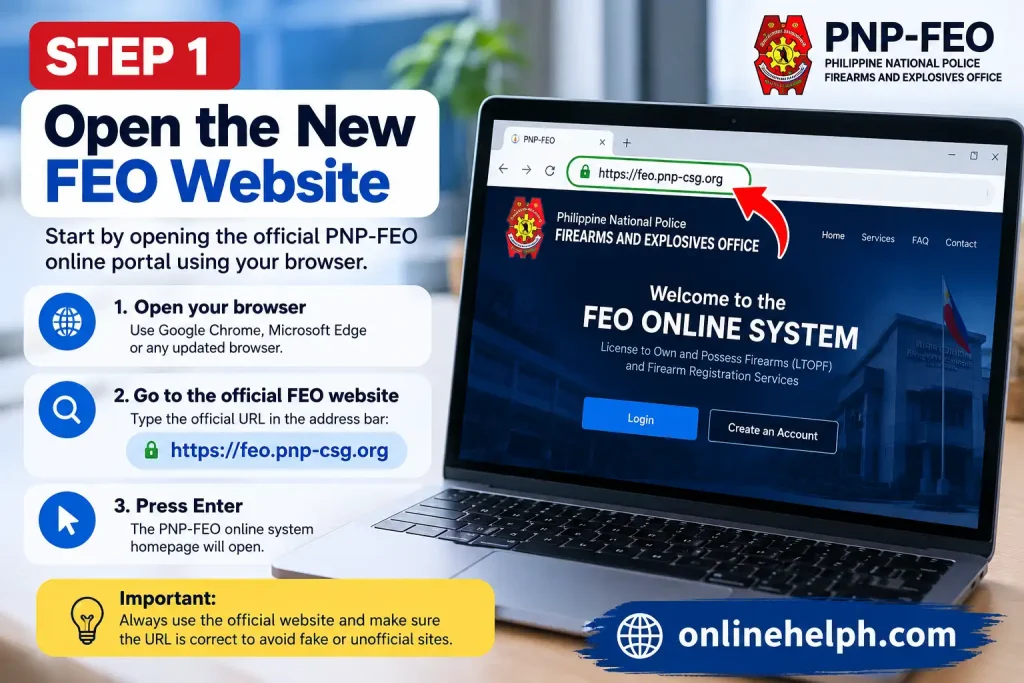
Start by opening the official PNP-FEO online portal:
PNP-FEO Official Online System
Use a current browser on a computer or mobile device. Make sure you enter the website address yourself or use an official PNP source rather than clicking unfamiliar links sent through social media or messaging applications.
The supplied FEO material identifies feo.pnp-csg.org as the new website.
Step 2: Enter Your Login Information
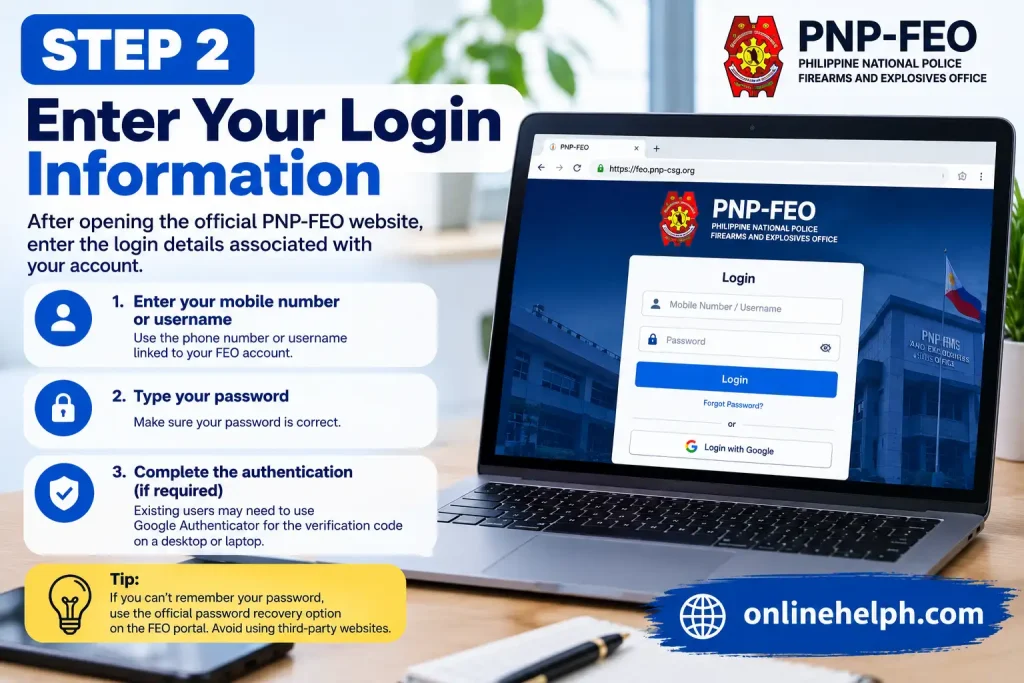
After opening the PNP-FEO System, the login page requires the credentials associated with your account.
The new login material shows a mobile-number-based login interface, followed by additional authentication.
Enter your information carefully.
If you cannot remember your password, look for the official password-recovery option provided by the portal rather than using a third-party website.
Step 3: Click “Begin”
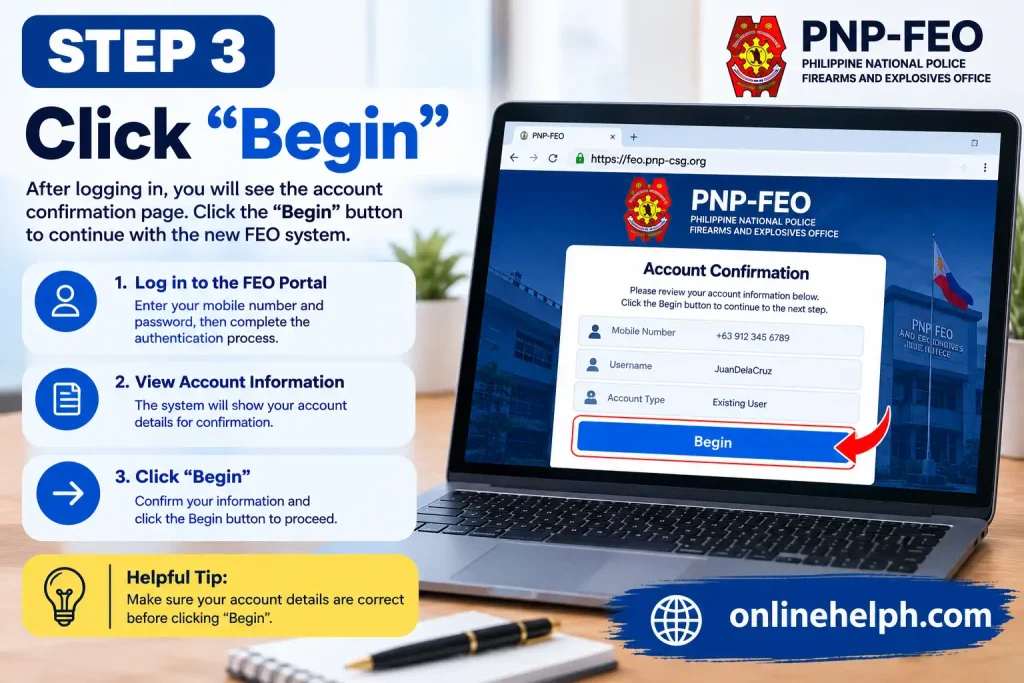
For users going through the new account-update process, the supplied guide identifies Begin as the next step after logging in.
The system may then ask you to confirm your account information before continuing.
Read the information displayed on the screen carefully before confirming.
Step 4: Confirm Your Account
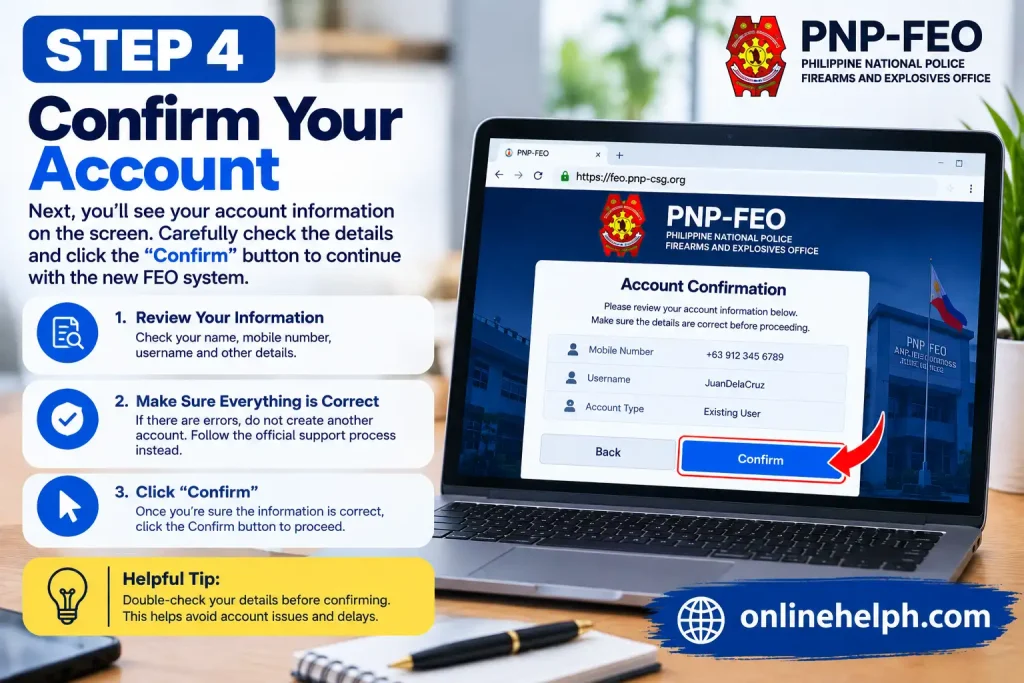
The next stage is account confirmation.
This step is particularly relevant to users moving from the previous FEO environment to the updated PNP-FEO System. The 2024 account-update instructions identify Confirm as part of the migration process.
If the information shown on the screen does not match your account, do not randomly create another account. Instead, follow the portal’s official account-support instructions.
Step 5: Set Up Google Authenticator
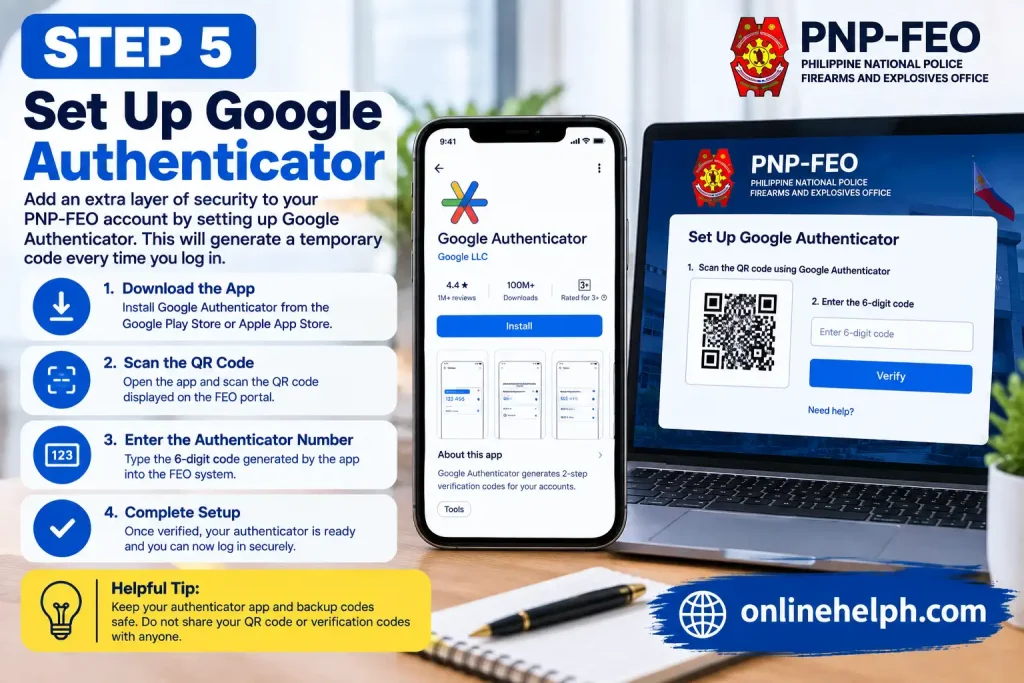
The updated FEO login process introduced an authenticator step.
The supplied FEO document specifically identifies:
as part of the setup process.
An authenticator application generates temporary verification codes. These codes provide an additional layer of account security beyond a password.
Install the authenticator application from the appropriate official app store on your mobile device.
Then follow the FEO portal’s instructions to connect your account.
Step 6: Scan the QR Code
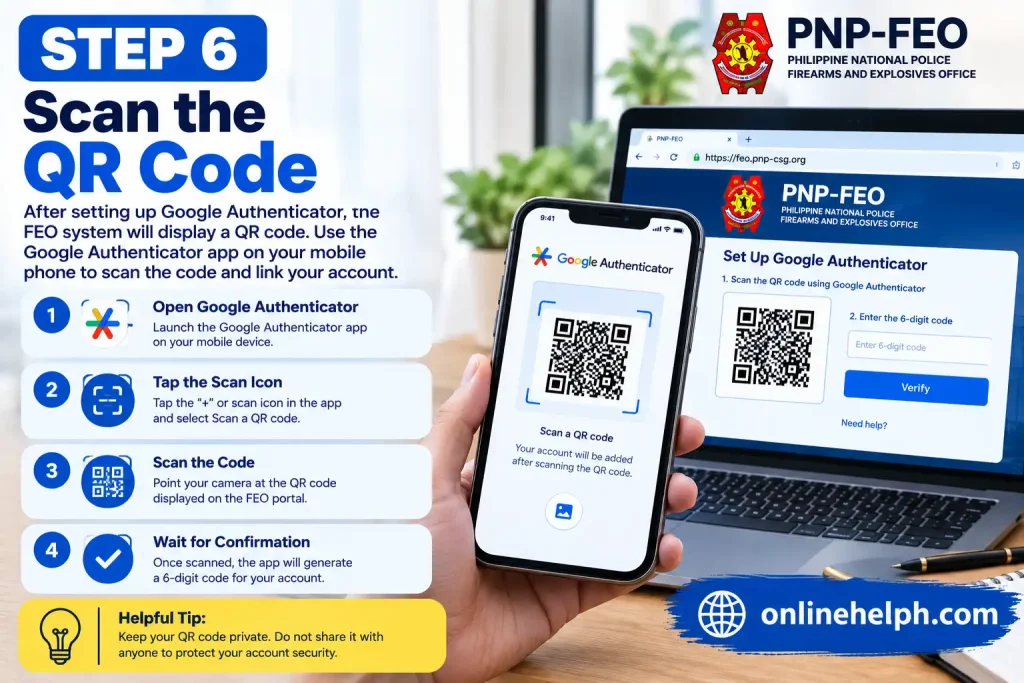
After the authenticator setup begins, the FEO System can display a QR code associated with the account.
Open the authenticator application and use its QR-scanning function according to the instructions displayed by the FEO portal.
The QR code is important because it connects the authenticator application with the account’s authentication setup.
Do not share your QR code or authentication setup information publicly.
If another person obtains authentication credentials or setup information, your account security could be compromised.
Step 7: Enter the Authenticator Number
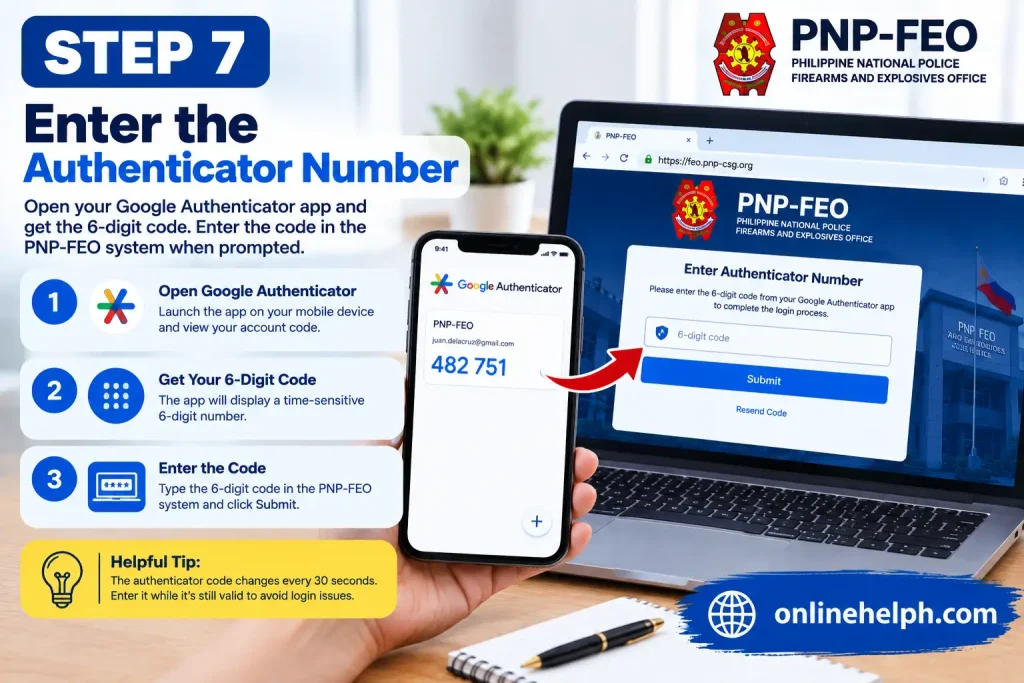
Once the authenticator is configured, it generates a temporary verification number.
Enter the current code into the PNP-FEO System when requested.
The code is time-sensitive, so enter it while it is still valid.
A third-party walkthrough of the new FEO login process describes the use of a six-digit authenticator code during login, but users should follow whatever authentication format the official portal currently displays.
Step 8: Update Your 2×2 Photo or Reset Your Password
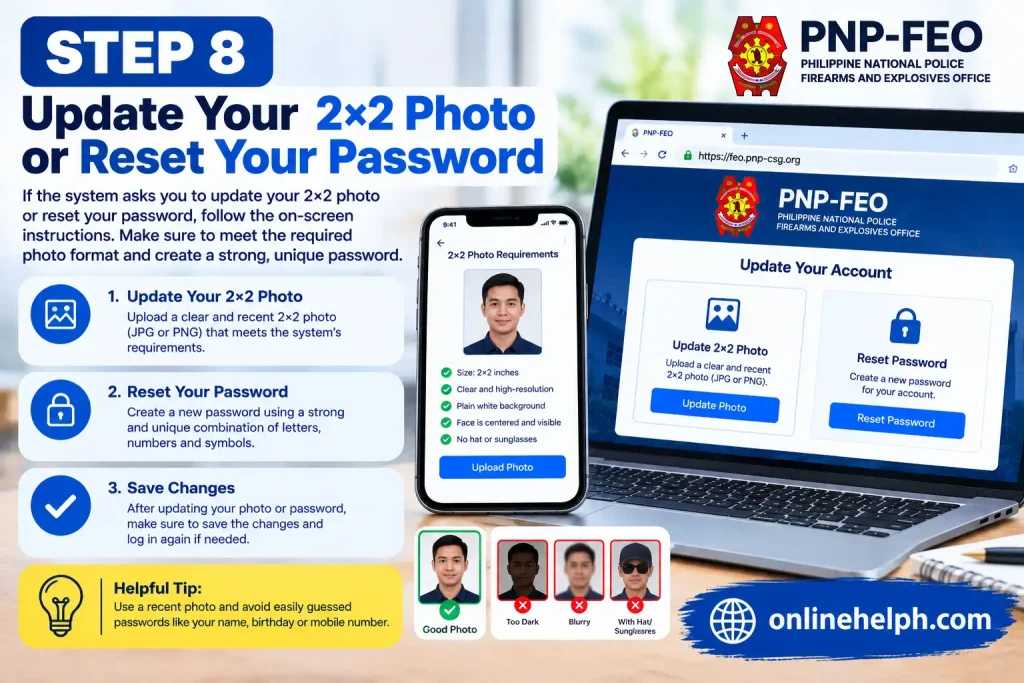
The supplied FEO guide identifies another possible account-maintenance step:
Change 2×2 picture / reset password.
If the portal asks you to update your photograph or password, follow the exact requirements shown by the system.
Do not upload a random image if the system specifies a particular photo format.
Similarly, when creating a new password, avoid easily guessed information such as your name, birthday, or mobile number.
What Services Can Be Accessed Through the FEO System?
The PNP-FEO System supports online processing connected with several FEO services.
Earlier official PNP instructional material identified two major categories:
1. LTOPF Application
This includes:
2. Firearms Registration
This includes transactions associated with:
The PNP’s published application instructions describe these services under the online application process.
The exact options shown to an individual user can depend on the account and transaction being processed.
PNP-FEO System Application Process
After accessing the account, users who need to submit an application should select the relevant service available in the portal.
The earlier PNP instructions describe a general workflow:
Apply → Select Services → Upload/Comply → Neuro and Drug Test → Approval → Payment → Releasing.
This is useful for understanding the overall process, although users should verify current requirements in the live portal and current FEO instructions.
Select the Correct FEO Service
Choose the service that corresponds to your transaction.
For example, the published instructions distinguish between:
Selecting the correct service is important because documentary requirements can differ.
Do not upload documents intended for a different transaction unless the portal specifically instructs you to do so.
Upload and Submit Requirements
After selecting a service, the PNP-FEO System may require supporting documents.
The earlier PNP application guide lists examples of documents associated with an LTOPF new application, including an application form, affidavit of undertaking, validated gun safety certificate, proof of income, identity documents, police clearance, photograph, employment/duty documentation, and other supporting documents.
Requirements can change, so treat that list as an example of the type of documentation historically requested—not as a substitute for the current FEO checklist.
Before submitting:
Neuro and Drug Test Stage
For certain applications, applicants may be required to undergo neuro and drug testing.
The PNP’s published online-application instructions state that applicants with submitted applications are required to undergo the neuro and drug test at the PNP Health Service and PNP Forensic Group or their regional offices, as applicable.
Because testing requirements and authorized locations may change, applicants should follow the current instructions attached to their application.
Application Evaluation and Approval
Submitting an application through the PNP-FEO System does not automatically mean that the application is approved.
The application goes through evaluation and approval procedures.
The FEO-related procedures published through the Philippine National Trade Repository show that applications can pass through multiple review stages, including checking document completeness, processing, proofreading, review, endorsement, concurrence, and approval.
This explains why an online application may remain under processing after the applicant has completed the electronic submission.
Payment for FEO Transactions
Where payment is required, applicants should use the payment instructions provided by the FEO.
Earlier PNP instructions described payment through LandBank OnColl Slip or Link.BizPortal, followed by uploading proof of payment to the account.
Because payment procedures can be updated, always verify the payment channel and amount displayed by the current PNP-FEO System before making a payment.
Do not send payment to a private individual or an unofficial account simply because someone claims to be assisting with an FEO application.
Releasing of Documents or License Cards
After the application has completed the necessary processing and approval stages, the final release procedure depends on the specific service.
The earlier FEO instructions state that applicants may need to proceed to the appropriate processing branch, such as an RCSU or FEO office, for printing and release of the license card.
The current PNP-FEO System should be treated as the primary source for instructions associated with your particular application.
PNP-FEO System Account Problems
Users may experience problems when moving to the new system.
Common issues include:
Forgotten Password
Use the password-recovery facility provided on the official FEO portal.
Authenticator Problems
If you lose access to your authenticator or encounter a problem with the authentication setup, use official FEO account-support procedures.
Do not give your password or authentication code to unofficial individuals claiming they can restore the account.
Old Account Not Working
The new FEO System required existing users to update or migrate their accounts. A 2024 account-update guide describes this migration process and the additional authentication setup.
Incorrect Personal Information
If your information is incorrect, follow the official correction or account-support procedure rather than creating multiple accounts.
Official FEO Websites and Resources
For users searching for the PNP-FEO System, these resources are particularly useful:
New FEO Online System:
https://feo.pnp-csg.org
FEO application/forms information:
FEO Forms and Application Information
The older PNP instructional material specifically directs applicants to the FEO forms page for downloadable forms.
PNP official website:
Philippine National Police
FAQs
Final Thoughts
The PNP-FEO System makes it possible for users to access important Firearms and Explosives Office services online, while the newer system adds stronger account authentication through an authenticator application. Existing users may need to complete the account-update process before they can fully access their account.
For a smooth experience, start with the official PNP-FEO System, keep your account credentials secure, complete the authenticator setup carefully, and check the current documentary and payment requirements before submitting an application. The PNP’s published process shows that online submission is only one part of the overall workflow; evaluation, required testing, payment, approval, and release may still be necessary depending on the transaction.
Read more
PAIS Admin Portal: Complete Guide to PAISadmin PNP Login, Records and Payslip
eTravel Philippines: Complete Online Registration Guide
PSA CRS Appointment System: Complete Online Booking Guide
PNP FEO Online System: Complete Registration, License and Application Guide
BIR ORUS Online Registration and Update System: Complete Guide
Complete Guide to Senator Bong Go Assistance, eGovPH, and Online Applications
SALN Form 2026: Complete Download and Step-by-Step User Guide