
The PNP Firearms and Explosives Office (FEO) Online System provides an online platform for eligible applicants to manage firearms-related licensing and applications. This guide explains how to access the official FEO system, create or migrate an account, prepare requirements, submit an application, monitor its status, and resolve common technical issues.
Official FEO Online System: feo.pnp-csg.org
Important: The FEO system deals with regulated firearms and explosives services. Always follow the official PNP requirements and applicable Philippine laws. The information below is intended as an administrative/portal user guide, not instructions for acquiring, modifying, or using weapons. visit Homepage
What Is the PNP FEO Online System?
The PNP FEO Online System is the digital platform associated with the Philippine National Police Firearms and Explosives Office. Instead of relying entirely on traditional in-person processing, applicants can use the online system for account-related tasks, applications, document submission, payment-related notifications, and application monitoring.
The official portal is:
Official PNP-FEO Online Portal
Before beginning an application, make sure you are using the official FEO website. Avoid unofficial websites, social-media pages, or individuals claiming they can guarantee approval or speed up your application.
PNP FEO Online System Account Registration
The first major step is creating an account on the PNP FEO Online System. New users generally need to provide the requested personal information and establish their login credentials.
Step 1: Open the Official FEO Website
Visit the official PNP FEO Online System through the FEO portal:
Open the Official FEO Online System
Check the website address carefully before entering personal information. A secure connection and the correct official domain are important when dealing with sensitive identity and licensing information.
Once the portal loads, look for the appropriate registration or account-access option.
Step 2: Create or Access Your Account
If you are a new user, select the registration option provided by the PNP FEO Online System and enter the information requested by the portal.
Depending on the account type and current FEO procedures, you may need information such as:
Use information that matches your official records. Incorrect information can create problems later when documents and records are verified.
Step 3: Verify Your Account
The FEO system may use verification mechanisms such as email, SMS, or authentication codes. Complete the verification process displayed on the portal.
Keep access to the email address and mobile number associated with your account because these may be needed for future authentication and account recovery.
Existing Users and Legacy Account Migration
Some applicants who previously used an older FEO platform may need to migrate or update their account rather than creating an entirely new account.
If the portal provides a migration option, follow the instructions displayed by the PNP FEO Online System.
Do not create multiple accounts simply because an old account is difficult to access. Duplicate records can potentially complicate account management and application processing.
If the system specifically requests legacy-account information, provide the requested details accurately.
Two-Factor Authentication
Security verification may be required when accessing the PNP FEO Online System. Two-factor authentication (2FA) provides an additional layer of account protection beyond the username and password.
If the portal asks you to configure an authenticator application:
Keep your authentication method accessible. If your authentication code stops working, use the official recovery or support process rather than attempting to bypass the security system.
Requirements for FEO Online Applications
The exact requirements depend on the service and applicant classification. Requirements can also change, so applicants should verify the latest information through the official FEO channels before submitting an application.
The provided FEO user-guide material identifies different applicant categories, including:
| Applicant category | Examples of information/documents that may be requested |
|---|---|
| Private employees | Identity, employment and supporting documents |
| Business owners | Business-related and identification documents |
| Professionals | Professional and identification information |
| Law enforcement | Official service-related information |
| Government officials | Government/service-related documentation |
The PNP FEO Online System may require digital copies of supporting documents. Make sure uploaded documents are readable, complete, and in the format accepted by the portal.
Prepare Your Documents Before Starting
Preparing your documents before opening an application can make the online process easier.
Check that:
If the PNP FEO Online System rejects an upload, check the file type and size before repeatedly attempting the upload.
Understanding LTOPF Classifications
The FEO system may present license classifications associated with the License to Own and Possess Firearms (LTOPF). The applicable classification depends on the rules and eligibility requirements established by Philippine authorities.
Your eligibility and permitted category should be determined by the official FEO process. Do not assume that a particular classification applies simply because another applicant received it.
When the PNP FEO Online System displays a classification or requirement during an application, carefully review the information and provide only the documents requested for your specific application.
Submitting an Application Through the FEO Portal
After registration and verification, an applicant can proceed to the relevant service available through the PNP FEO Online System.
A typical online workflow involves:
Review everything carefully before pressing the final submission button.
Why Accurate Information Matters
Information entered into the PNP FEO Online System may be checked against submitted documentation and official records. A spelling error, incorrect identification number, outdated information, or mismatched document can result in delays or a request for correction.
Take a few minutes to review your application before submission.
PNP FEO Online System: Complete Registration, License and Application Guide
How to Track Your FEO Online Application
After submitting an application through the PNP FEO Online System, applicants should regularly check the application status through their account. The online tracking feature can help you determine whether an application is still being processed, requires an action, or has reached another stage of the official workflow.
To access the portal, use the official website:
Official PNP FEO Online System
Sign in using your registered credentials and open the relevant application or transaction section. The exact labels and interface may change as the FEO system is updated.
Common Application Statuses
The wording used by the PNP FEO Online System can vary, but an online application may display a status indicating that it has been:
Always read the accompanying notification rather than relying solely on the status label.
If the system requests additional documents or corrections, follow the instructions shown in your account.
Payment Notifications in the FEO Online System
Some FEO transactions may involve applicable government fees. If the PNP FEO Online System generates a payment notice, carefully review the amount, payment instructions, reference information, and deadline displayed by the official portal.
Do not send money to an individual who claims they can guarantee approval or accelerate processing.
Use only payment methods and instructions officially provided through the FEO process.
After completing a payment, retain the official receipt or transaction confirmation. You may need it when checking your application or responding to an issue.
What If Your Payment Is Not Showing?
If you have completed an official payment but the PNP FEO Online System does not immediately reflect it, avoid making another payment until you determine what happened.
First:
Keep screenshots or transaction records when contacting support.
FEO Online Document Upload Problems
Document uploading is one of the areas where applicants can encounter technical problems.
If the PNP FEO Online System rejects a document, check the requirements displayed on the upload page.
Check the File Format
The portal may restrict the types of files that can be uploaded. If your file is rejected, check whether the system accepts the file extension you are using.
Check the File Size
Large photographs or scanned documents may exceed the portal’s maximum file size. If the portal specifies a maximum size, prepare the document within that limit.
Avoid using unnecessarily high-resolution files when they are not required.
Make Sure the Document Is Readable
A document should be:
Do not deliberately alter official documents to make them appear different.
FEO SMS OTP Not Arriving
An SMS one-time password (OTP) may be required during authentication. If the OTP does not arrive, first check that the mobile number associated with your PNP FEO Online System account is correct.
You can also:
If multiple OTP requests are made, an older code may become invalid when a newer one is generated. Use the most recent valid code provided by the system.
If the problem continues, use the official FEO support process rather than attempting to circumvent authentication.
Google Authenticator Problems
Users who have configured an authenticator application may occasionally find that a verification code is rejected.
This can happen if the device’s time is significantly out of synchronization or if the authentication setup was not completed correctly.
Check that your phone’s date and time are set correctly and that the authenticator application is generating current codes.
If you have lost access to the authenticator device, use the official account-recovery procedure provided by the PNP FEO Online System.
Do not share authentication codes, passwords, recovery information, or other account credentials with another person.
Neuro-Psychiatric and Drug Test Records
The provided FEO user-guide information identifies situations where required Neuro-Psychiatric or Drug Test results may not immediately appear as linked to an application.
If the required record does not appear in your PNP FEO Online System account, first verify that:
If the record remains unlinked, contact the appropriate official FEO support channel for assistance.
Do not attempt to create, alter, or upload a false record to make an application appear complete.
How to Avoid Common FEO Application Delays
Many online application problems can be reduced by preparing carefully before submission.
1. Use Consistent Personal Information
Enter your name and other identifying details exactly as they appear on your official documents.
2. Check Every Uploaded File
Before uploading a document, open it yourself and verify that the entire document is visible and readable.
3. Monitor Your Email and Phone
The PNP FEO Online System may use registered contact information for account verification or notifications.
4. Check Your Application Regularly
Do not assume that submission means the process is complete. Log in periodically and look for messages, requests, or status changes.
5. Keep Your Records
Save relevant application references, receipts, confirmations, and official communications.
FEO Account Recovery
If you cannot access your FEO account, use the recovery option provided by the official portal rather than creating another account immediately.
Access the official FEO portal
Depending on the current system configuration, account recovery may require information associated with your registered account.
If you no longer have access to your registered email address or mobile number, follow the official support instructions.
Protecting Your FEO Online Account
Because the PNP FEO Online System involves sensitive personal and licensing information, account security is important.
Never share:
Avoid logging in through links sent by unknown individuals. Instead, type or bookmark the official FEO website yourself.
Be particularly cautious of anyone claiming to be an agent who asks for your password or authentication code.
What to Do If the FEO Website Is Temporarily Unavailable
Government online systems can occasionally experience maintenance, technical problems, or heavy traffic.
If the PNP FEO Online System is temporarily unavailable:
Do not assume that an unavailable page means your application has been cancelled.
Using the Official FEO Website Safely
For administrative tasks, always begin with the official FEO website:
PNP Firearms and Explosives Office Online Portal
This is especially important because searches for government services can sometimes display unofficial websites, advertisements, social-media accounts, or third-party services.
Before submitting personal information, verify the domain.
Quick FEO Online Troubleshooting Table
| Problem | What to check |
|---|---|
| Cannot sign in | Username/password and account recovery |
| SMS OTP missing | Mobile number, signal and temporary SMS delays |
| Authenticator code rejected | Device time and authentication setup |
| Document rejected | File type, size and readability |
| Test result not linked | Personal details and provider submission |
| Payment not reflected | Receipt, reference number and application status |
| Application returned | Read the official correction/request message |
| Website unavailable | Try again later and check official notices |
| Duplicate account issue | Use existing-account recovery/support procedures |
Important Reminder About FEO Applications
The PNP FEO Online System is an administrative platform, and using the portal does not automatically mean an application will be approved. Applications remain subject to applicable Philippine laws, eligibility requirements, document verification, and official review.
Applicants should rely on the requirements displayed by the official FEO system rather than outdated information found on third-party websites.
If there is a difference between an older online guide and the current portal instructions, follow the current official FEO instructions.
PNP FEO Online System: Complete Registration, License and Application Guide
Complete PNP FEO Online Application Workflow
The PNP FEO Online System brings several administrative steps together in one online environment. Although the exact screens and requirements can change, the overall process can be understood as a sequence: account access, verification, application selection, information entry, document submission, review, payment where applicable, and status monitoring.
Always use the official portal for the current procedure:
Official PNP FEO Online System
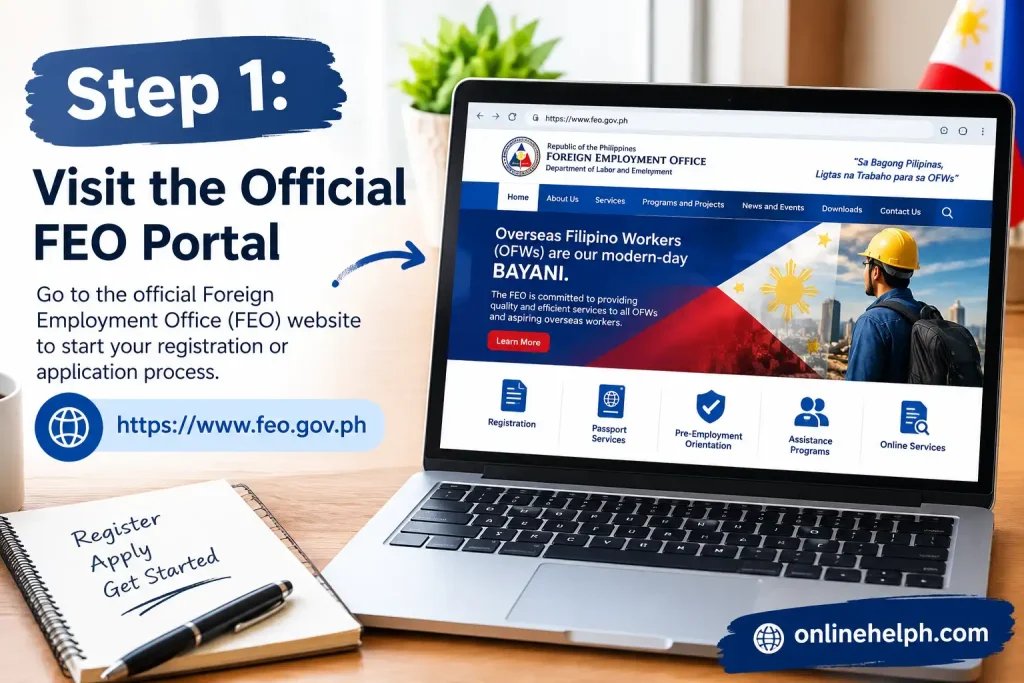
Step 1: Visit the Official FEO Portal
Open the official PNP FEO Online System website.
Open FEO Online Portal
Before signing in, confirm that you are on the correct official domain. Do not enter your personal information into an unofficial website claiming to represent FEO.
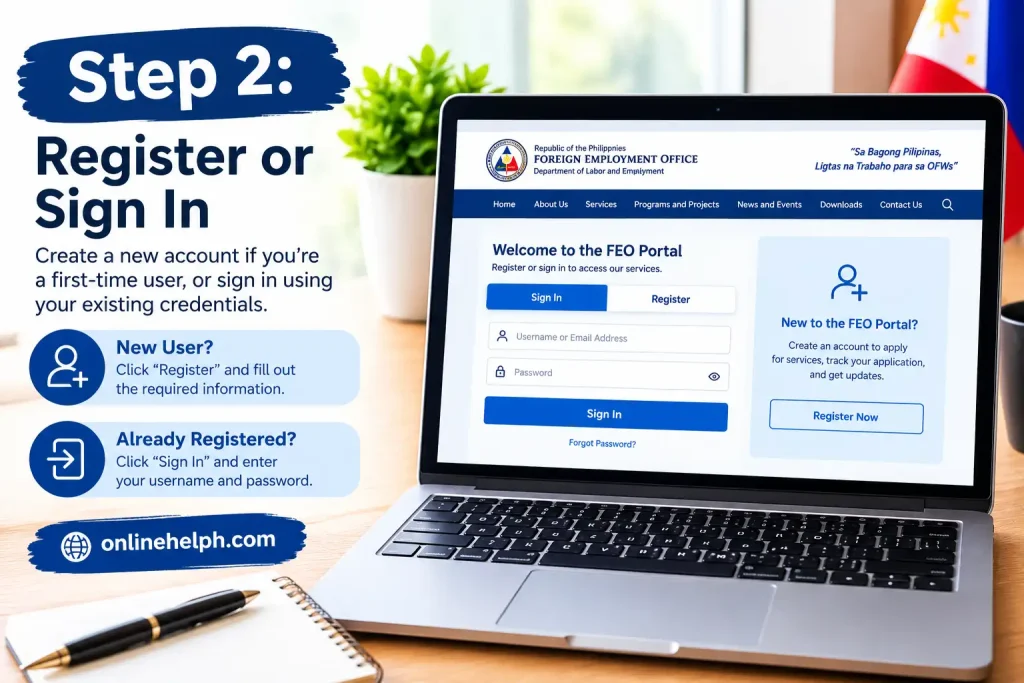
Step 2: Register or Sign In
New applicants should use the registration process available on the portal. Existing users should sign in using their existing account.
If the system identifies your account as belonging to an older FEO platform, follow the migration instructions displayed on the website.
Avoid creating unnecessary duplicate accounts.
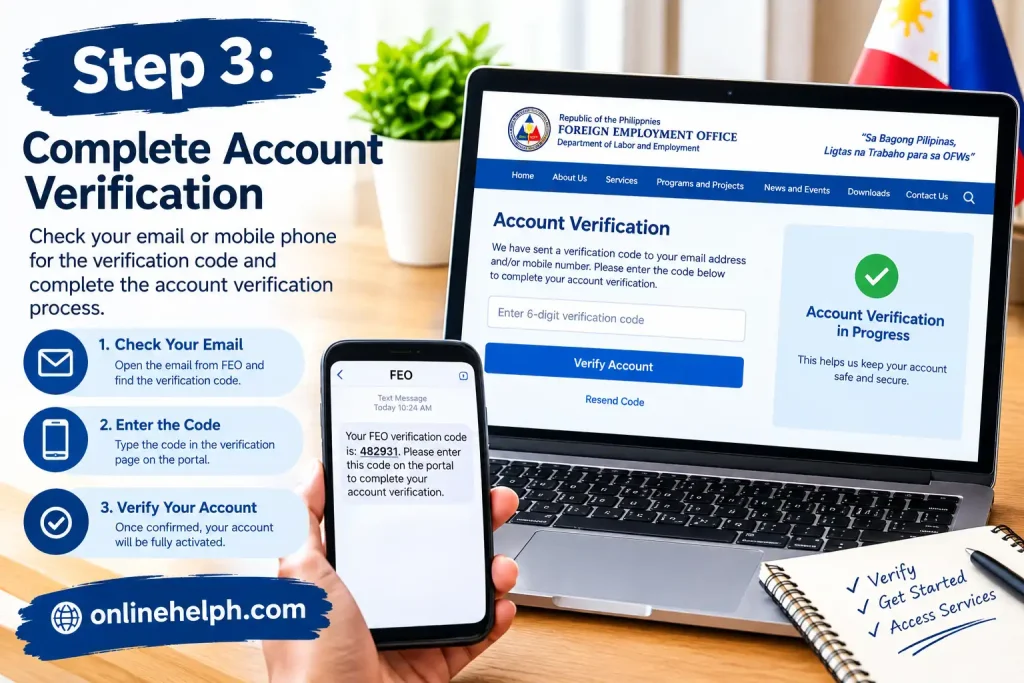
Step 3: Complete Account Verification
Complete any email, SMS, or two-factor authentication requirements presented by the PNP FEO Online System.
If an OTP or authenticator code is required, enter the current code exactly as instructed.
Never give an OTP or authentication code to another person, even if they claim to be helping with your application.
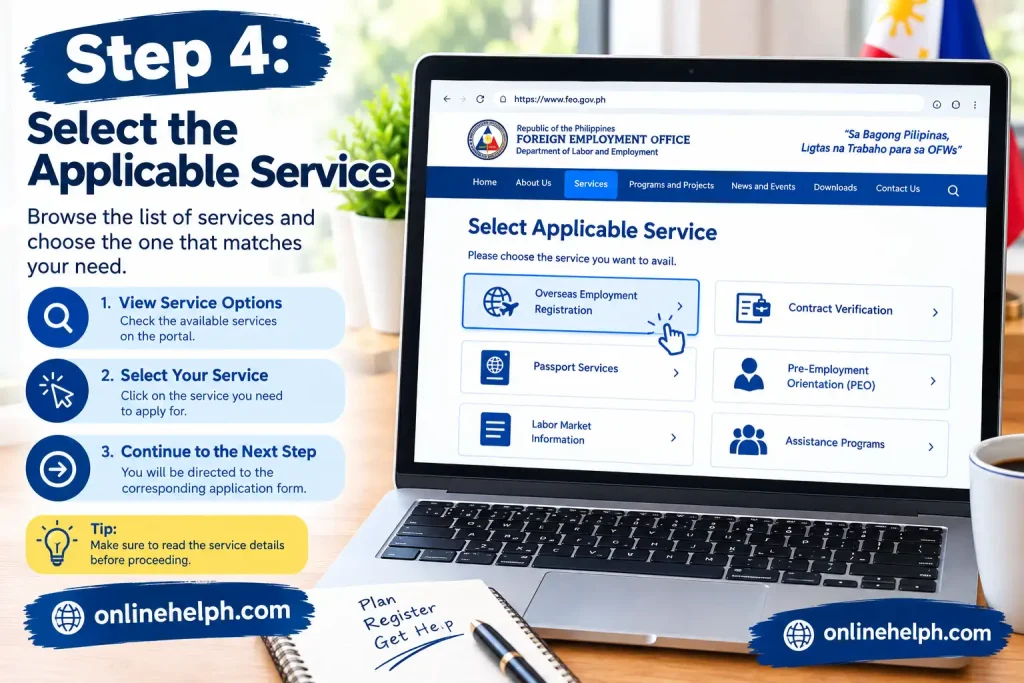
Step 4: Select the Applicable Service
Once inside your account, identify the service relevant to your situation.
Read the eligibility and requirements displayed by the PNP FEO Online System before proceeding. Different applicant categories and services may require different documentation.
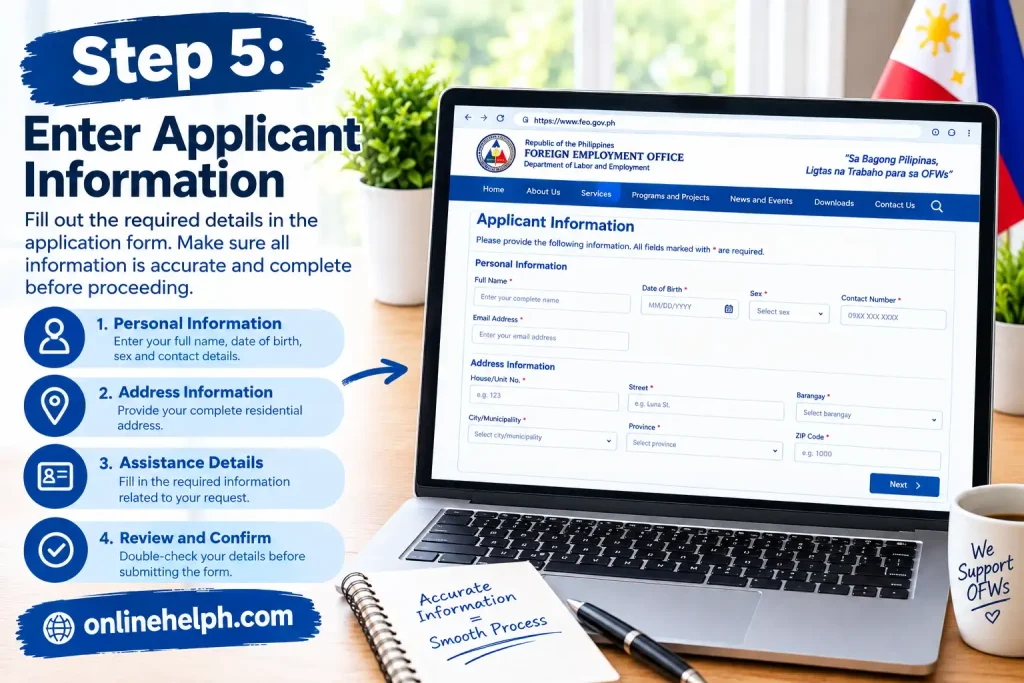
Step 5: Enter Applicant Information
Enter your information carefully and make sure it corresponds with your official records.
Review:
Do not guess at information. If you are unsure about a required field, consult the official FEO instructions or support channel.
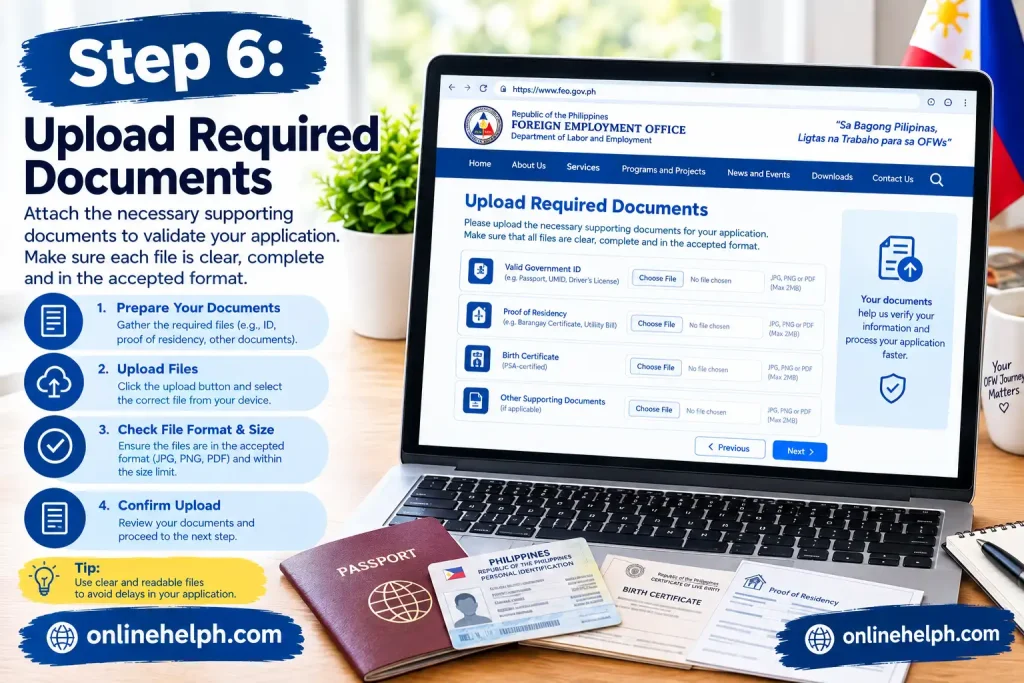
Step 6: Upload Required Documents
Upload the supporting documents requested for your particular application.
Before submitting, verify each document for:
Clarity: Text should be readable.
Completeness: All required pages should be included.
Correctness: The document should belong to the applicant and correspond to the requested requirement.
File compatibility: Follow the portal’s stated file format and size restrictions.
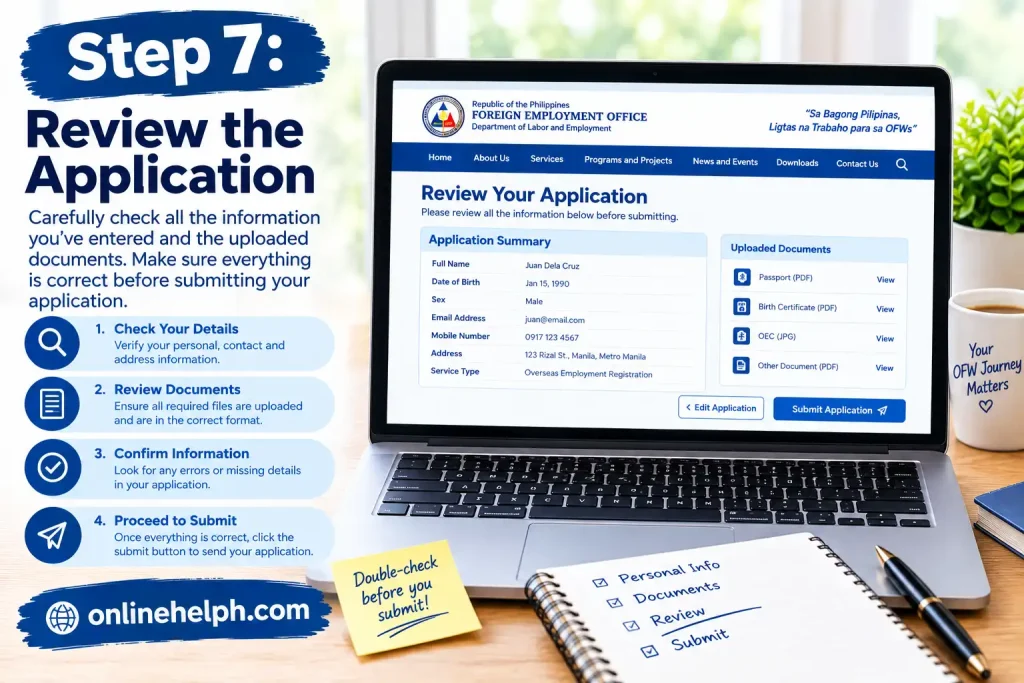
Step 7: Review the Application
The review stage is one of the most important parts of using the PNP FEO Online System.
Before submission, check every field and uploaded document.
Look particularly for:
Correct errors before submitting whenever the system allows you to edit the information.
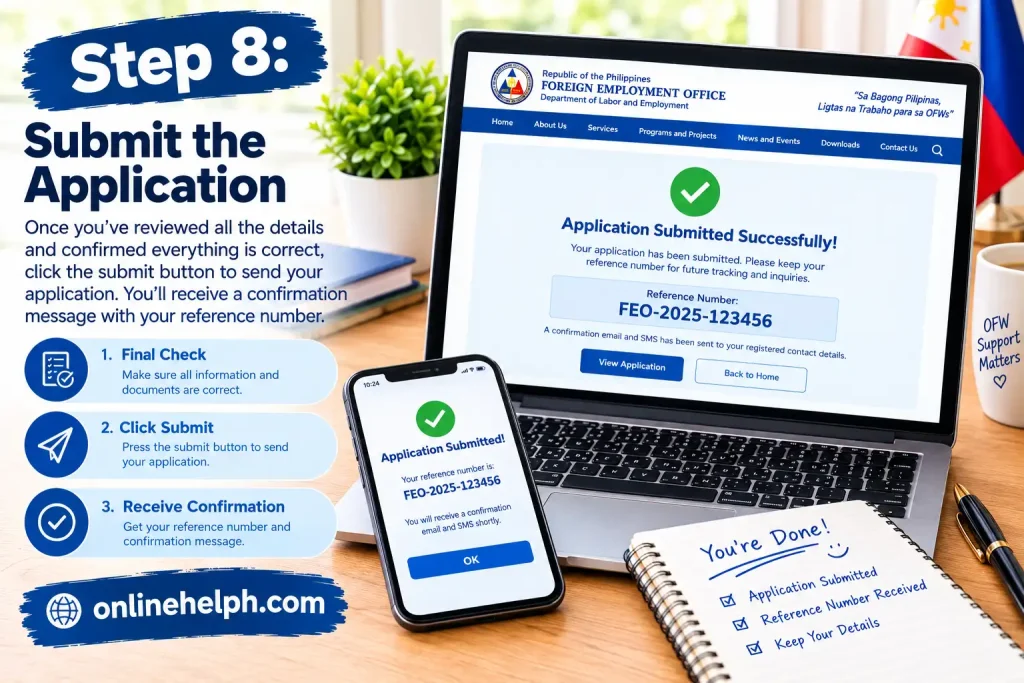
Step 8: Submit the Application
After reviewing your information, submit the application through the official portal.
Save any application reference, confirmation number, or other transaction information generated by the system.
This information can be useful when tracking your application or contacting official support.
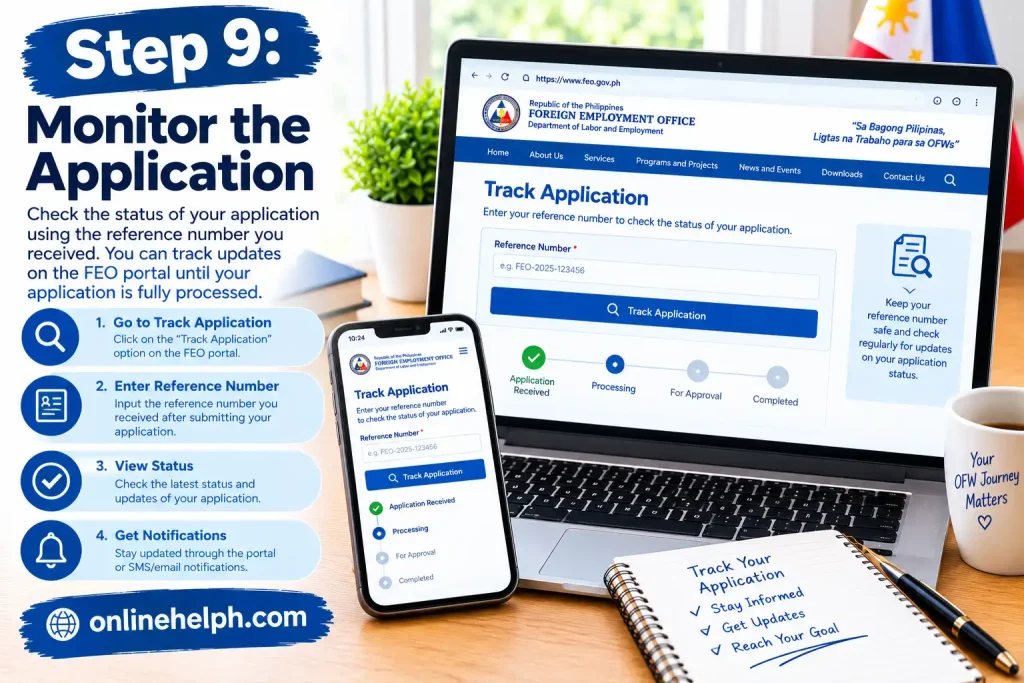
Step 9: Monitor the Application
Return to the PNP FEO Online System and check the application status periodically.
If FEO requests additional information or corrections, read the notification carefully and follow the instructions provided.
Submission does not necessarily mean the application has been approved.
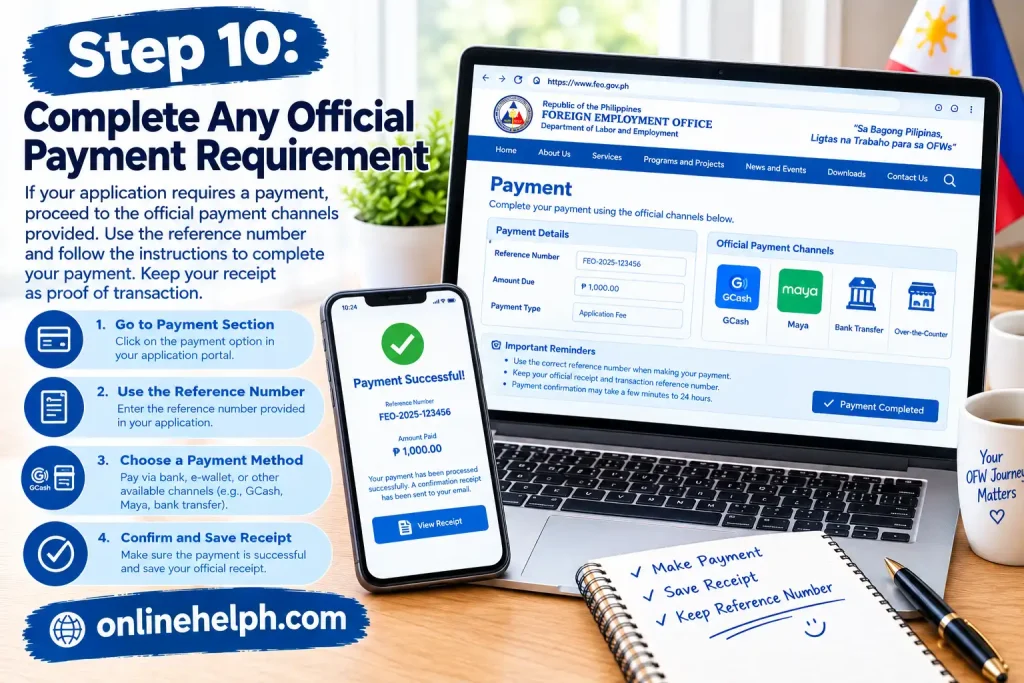
Step 10: Complete Any Official Payment Requirement
If the system generates a legitimate payment requirement, follow the payment instructions displayed by the official FEO process.
Keep your payment confirmation or receipt for your records.
Do not pay unofficial intermediaries who promise guaranteed approval.
FEO Online System Requirements Checklist
Before beginning an application, applicants can use the following general preparation checklist:
Account Information
Identification
Supporting Documents
Application
After Submission
Requirements can change, so this checklist should be treated as a preparation guide rather than a replacement for the current official FEO requirements.
Common PNP FEO Online System Problems
“My Account Is Not Working”
First verify your login information. If you have forgotten your credentials, use the official recovery process.
Avoid repeatedly creating new accounts because doing so can make account management more complicated.
“I Did Not Receive an OTP”
Check your registered mobile number and network connection. Wait briefly and request another code if the portal provides that option.
If the problem persists, use the official FEO support procedure.
“My Authenticator Code Is Invalid”
Check that your device’s date and time are synchronized correctly. Make sure you are using the current code generated by your authenticator application.
For persistent authentication problems, use the official recovery process.
“My Document Will Not Upload”
Check the file type and maximum size specified by the portal. Also make sure the document is readable and not corrupted.
If necessary, create a clean digital copy that complies with the FEO system’s requirements.
“My Application Is Missing a Record”
If a required Neuro-Psychiatric or Drug Test record does not appear, verify that your information matches the record and that the relevant provider has completed the required submission process.
If the record remains unavailable, contact the appropriate official FEO support channel.
“My Payment Has Not Been Updated”
Keep your payment receipt and transaction reference. Check the application again after allowing appropriate processing time.
If the transaction still does not appear, contact official support rather than paying again without confirmation.
How to Keep Your FEO Application Organized
A simple record-keeping system can make it easier to manage an application.
Keep copies of:
Store these records securely because they may contain personal information.
You should also make sure that the email address associated with your PNP FEO Online System account remains accessible.
FEO Online System Security Tips
Online government accounts should be treated as sensitive accounts.
Use a unique password and do not share your login credentials.
Avoid signing in from public computers whenever possible. If you must use a shared device, sign out completely after completing your transaction.
Never send your password, OTP, authenticator code, or recovery information to an unknown person.
Be cautious of messages claiming that someone can guarantee approval, bypass requirements, or accelerate an application for an unofficial fee.
For online transactions, start from the official FEO portal rather than clicking suspicious links received through social media or messaging applications.
Official FEO Website
Why You Should Use the Official FEO Website
Searching for PNP FEO Online System information can produce many third-party pages. These pages can be useful for general explanations, but the official FEO portal should be your primary source for current application instructions.
The official website is the appropriate place to check:
Government procedures can change, so information published elsewhere may become outdated.
Final PNP FEO Online System Checklist
Before finishing your transaction, ask yourself:
Have I used the official FEO website?
Is my account information correct?
Have I completed the required verification?
Did I select the correct service?
Are my documents complete and readable?
Did I review every field before submission?
Did I save my application reference?
Have I checked for official payment instructions?
Am I monitoring my application status?
If the answer to each applicable question is yes, you have completed the main administrative steps required for using the PNP FEO Online System.
FAQs
Conclusion
The PNP FEO Online System provides a convenient way to manage applicable Firearms and Explosives Office transactions online, from account registration and verification to application submission and status monitoring. The key to a smoother experience is preparation: use the official FEO portal, provide accurate information, upload clear and complete documents, carefully review every application detail, and keep your reference numbers and official receipts for future use.
If you experience problems such as OTP delays, authentication errors, document-upload issues, payment-status delays, or missing records, use the official FEO support and recovery procedures rather than relying on unofficial agents or websites.
For the latest requirements, procedures, and account services, always check the official PNP FEO Online System:
Official PNP FEO Online Portal
Following the current instructions provided by the Philippine National Police Firearms and Explosives Office can help you complete the online administrative process accurately while keeping your personal information and account credentials secure.
Read more
Complete Guide to Senator Bong Go Assistance, eGovPH, and Online Applications
BIR ORUS Online Registration and Update System: Complete Guide
MySSS Card 2026: Requirements, Online Application, Fees & Complete Guide
SALN Form 2026: Complete Download and Step-by-Step User Guide
x
BIR eFPS 2026: Registration, Login, Tax Filing and Payment GuideMATATAG Curriculum Guide 2026
MAAG Curriculum Guide 2026