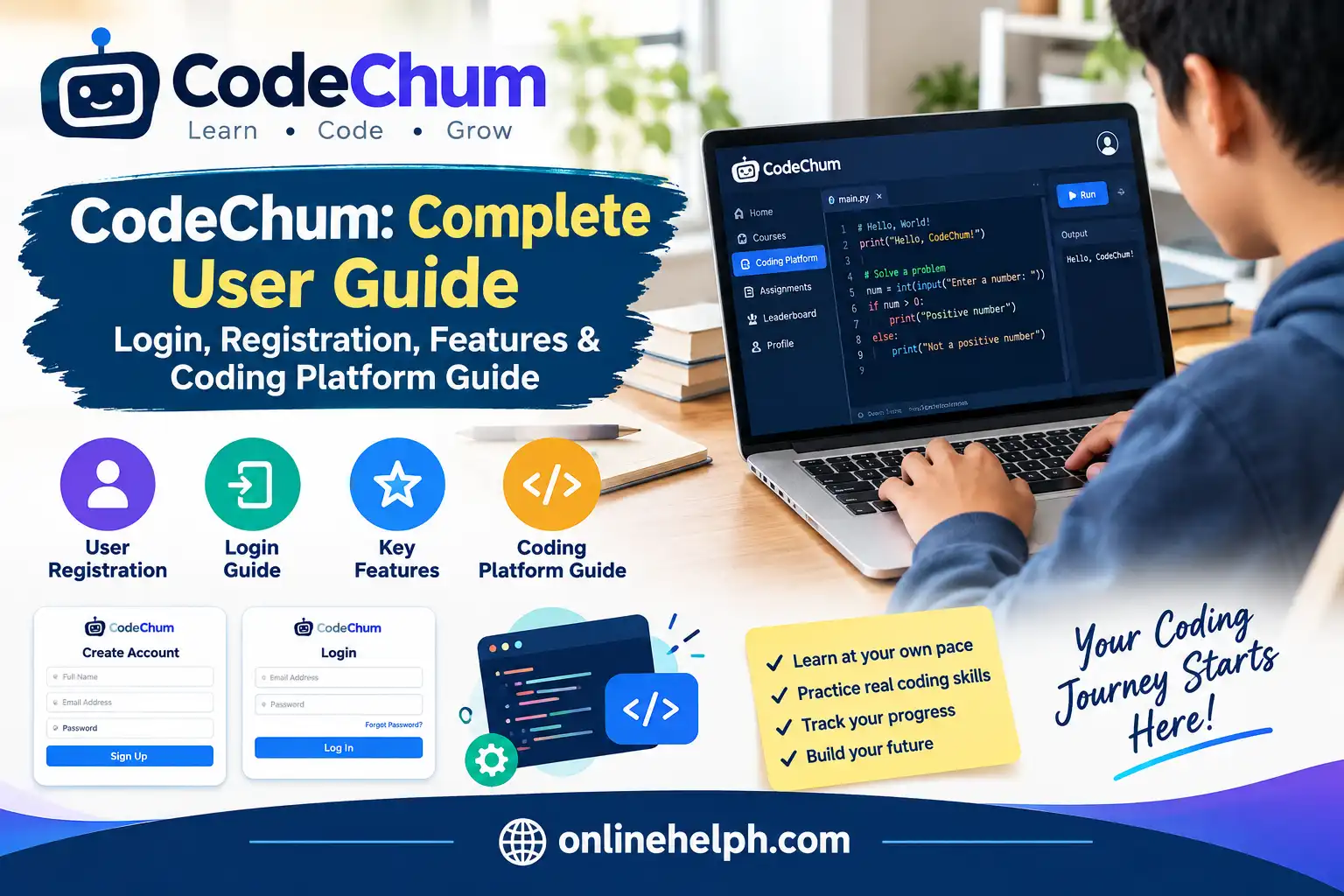
CodeChum student portal is an online programming education platform designed to help students learn coding while giving teachers tools to create activities, check submissions, monitor student performance, and manage programming classes. The platform combines learning resources with an online coding environment, making it possible for students to work on programming exercises directly through a browser.
According to the official CodeChum student portal website, the platform is focused on programming education in the Philippines and provides features such as built-in programming curricula, automatic code checking, student performance monitoring, cheating prevention, and mobile accessibility.
This CodeChum student portal guide explains how the platform works, how students and teachers can access their accounts, how to join classes, how coding activities are submitted, and what features are available for programming education.
Whether you are a student trying to access a CodeChum student portal class or a teacher looking for a practical way to manage programming activities, this guide covers the important steps you need to know.
What Is CodeChum?
CodeChum student portal is a web-based learning platform created specifically for programming education. It provides an environment where students can practice programming and where instructors can organize programming courses and evaluate student work.
The platform combines elements of a learning management system with an online coding environment. Instead of requiring students to install a separate compiler for every programming exercise, CodeChum student portal provides browser-based coding functionality for supported programming languages.
The official platform describes CodeChum student app as an innovative learning platform for programming education and lists automatic code checking, student performance monitoring, cheating prevention, and mobile accessibility among its capabilities. visit for Homepage
Who Can Use CodeChum?
CodeChum student app is primarily useful for:
The official CodeChum student app website states that its platform is used by more than 100 schools nationwide, with public and private educational institutions among its users.
CodeChum Features
One of the main reasons educational institutions use CodeChum student app is that it brings several programming-learning functions together in one platform.
1. Online Programming Environment
Students can write and execute programming code through the platform without depending entirely on locally installed development environments.
The platform supports several programming languages and courses. Its official website currently lists C, C++, C#, Java, Python, HTML, CSS, JavaScript, and MySQL-related learning among its supported courses and languages.
This makes CodeChum student app useful for both introductory programming subjects and more advanced computer science coursework.
2. Automatic Code Checking
Another important CodeChum student app feature is automatic code checking.
Teachers can create programming activities with evaluation criteria and test cases. When students submit their solutions, the system can automatically evaluate the program and provide results.
This can reduce the amount of repetitive manual checking required from instructors while giving students quicker feedback on their work.
3. Student Performance Monitoring
CodeChum student app also provides tools for monitoring student performance.
Teachers can use platform activity and performance information to identify students who may need additional assistance. This is particularly useful in programming classes because students can progress at very different speeds.
Instead of waiting until an examination or final project, instructors can use performance information during the course to identify learning difficulties earlier.
4. Academic Integrity and Cheating Prevention
Programming assessments can create challenges when students have access to online resources or other people’s code.
The CodeChum student app guide supplied for this article describes integrity features including keystroke replay, paste detection, code similarity checking, and activity monitoring.
These tools can help teachers review how programming work was produced and identify unusual similarities or large external code pastes.
5. Built-In Programming Curriculum
CodeChum student app also provides pre-built programming content.
Its official website lists subjects including Programming 1, Programming 2, Data Structures, Object-Oriented Programming, Basic Web Development, Information Management, Algorithms and Complexity, and Software Engineering.
This means instructors may be able to use existing course material rather than creating every programming activity from the beginning.
CodeChum Login: How to Access Your Account
If your school or instructor uses CodeChum student app, you normally need to access the platform using the account or login method provided to you.
The official website provides Sign In and Sign Up options from its main navigation.
Step 1: Open the Official CodeChum Website
Start by visiting the official CodeChum student app website:
Official CodeChum student app Website
Always check that you are using the correct CodeChum student app domain before entering your login information. Official site

Step 2: Select Sign In
From the CodeChum student app website, select Sign In.
The official site directs users to the CodeChum student app application for account access.

Step 3: Enter Your Login Information
Depending on your institution and account setup, you may be able to sign in using your registered email or another supported login method.
The CodeChum student app login interface shown in the supplied guide supports an email/username and password login as well as Google sign-in.

Step 4: Open Your Student or Teacher Dashboard
After successful authentication, you can access the features associated with your account.
Students can access their classes and assigned activities, while teachers can access classroom and course-management functions.
Important: If your school has provided a specific CodeChum platform login link or institutional account, use the credentials and instructions supplied by your instructor or institution.

CodeChum Registration: How to Create an Account
If you do not already have an account, the registration process can be started from the official CodeChum platform website.
CodeChum platform Sign Up Page
The official website currently provides a dedicated sign-up page.
Step-by-Step CodeChum Registration
Step 1: Visit the Official Website
Go to:
CodeChum platform Official Website
Step 2: Click Sign Up
Select Sign Up from the website navigation.
Step 3: Choose Your Account Type
Select the appropriate role, such as Student or Teacher, according to your use of the platform.
Step 4: Provide Your Account Information
The supplied CodeChum platform guide identifies information such as:
The guide also describes Google sign-in as an available option.
Step 5: Verify Your Account
If CodeChum platform requests email verification, open the verification message sent to your email and follow the provided instructions.
Step 6: Sign In
Once registration is complete, return to the CodeChum platform login page and access your account.
CodeChum Student Guide
The CodeChum student portal is designed around classes, programming activities, assignments, quizzes, exams, and coding submissions.
After logging in, students can access the classes associated with their account.
How to Join a CodeChum Class
If your teacher has provided a class code, you can use it to join the appropriate class.
Step 1: Log In
Open your CodeChum platform student account.
Step 2: Select Join Class
From your dashboard, locate Join Class.
Step 3: Enter the Class Code
Enter the unique class code supplied by your instructor.
The supplied guide gives an example format such as CS101-2026-X49; however, your actual CodeChum platform class code will be provided by your school or teacher.
Step 4: Enroll in the Class
Select Enroll or the equivalent confirmation option.
After joining successfully, the class should appear in your student dashboard or My Classes area.
How to Access CodeChum Assignments
Once you have joined a class, you can select the relevant course or class from your dashboard.
Depending on how your instructor has configured the course, activities may include:
The supplied CodeChum platform guide notes that activities can display information such as deadlines, total points, and allowed attempts.
Before starting an assignment, carefully read the instructions provided by your teacher.
Pay particular attention to:
Understanding the requirements before writing code can prevent unnecessary errors during submission.
CodeChum Online Coding IDE
One of the most useful parts of CodeChum platform is its browser-based coding environment.
Students can work directly inside the platform rather than switching between multiple applications for every exercise.
The supplied guide describes a typical coding interface with the problem statement, code editor, and terminal/output areas.
Problem Statement Panel
The problem area explains what your program needs to accomplish.
Read the entire problem carefully before coding.
Look for:
Code Editor
The code editor is where you write your solution.
Select or confirm the required programming language before beginning your solution.
Run Code
Use Run Code to test your program.
This is important because a program that looks correct may still contain syntax errors, logical mistakes, incorrect output formatting, or unexpected behavior.
Submit Code
After testing your solution, select Submit Code.
The supplied guide explains that submissions may be evaluated against hidden test cases and that the resulting score is displayed after evaluation.
Understanding CodeChum Submission Results
When you submit a programming solution, the result helps you understand whether the program passed the evaluation.
| Result | What It Usually Means | What You Should Do |
|---|---|---|
| Accepted / Passed | Your solution produced the expected result | Review the score and continue |
| Wrong Answer | The output did not match the expected result | Check logic, spaces, newlines and capitalization |
| Compilation Error | Your program contains a syntax or compilation problem | Read the error message and correct the code |
| Time Limit Exceeded | The program took longer than the allowed execution time | Check loops and improve the algorithm |
These result categories and corrective actions are also reflected in the supplied CodeChum online platform guide.
Why Output Formatting Matters
A common beginner mistake is producing the correct general answer but using the wrong format.
For example, an automated evaluator may treat these as different:
Extra spaces, missing line breaks, capitalization differences, or additional explanatory text can cause an otherwise logical solution to fail an automated test.
For this reason, always follow the exact output format specified in the problem.
What Comes Next?
Part 2 will cover the CodeChum teacher portal, creating classes, creating assignments and custom programming problems, test cases, grading, performance monitoring, plagiarism/cheating-prevention tools, pricing, and practical best practices.
CodeChum Tutorials & Help Guides
The official CodeChum site also provides dedicated guides for teachers and students.
Here is Part 2 of the CodeChum technical guide, focusing on advanced platform features, administrative workflows, troubleshooting, and API/integration options.
Advanced Proctoring & Anti-Cheating Controls
CodeChum offers granular settings for teachers during high-stakes exams and quizzes to maintain strict academic integrity.
Active Monitoring Settings
Advanced Curriculum & Test Case Configuration
Creating effective automated test cases ensures accurate student code evaluation.
Test Case Types
Memory & Execution Boundaries
| Setting | Standard Default | Advanced Upper Limit | Purpose |
| Execution Time Limit | 1.0 Second | 5.0 Seconds | Prevents server overload and detects infinite loops. |
| Memory Limit | 128 MB | 512 MB | Restricts excessive heap allocation or recursive stack overflows. |
| Submission Limit | Unlimited | Custom Count (e.g., 3-5) | Restricts brute-force submittals during exams. |
Class Analytics & Performance Reports
Instructors can access real-time data to track class performance and individual student growth.
Available Analytics Metrics
Troubleshooting Common Platform Issues
For Students
For Teachers
Would you like to explore setting up custom LMS integrations (such as Canvas or Moodle) or creating custom question banks for a specific programming language?
FAQS
Conclusion
CodeChum provides a practical online environment for learning, teaching, and assessing programming skills in one place. Students can log in, join classes, work on coding activities, test their programs, and submit solutions for automatic evaluation, while teachers can create programming exercises, manage classes, monitor progress, and review assessment results.
One of the platform’s biggest advantages is its combination of a browser-based coding environment, automated code checking, curriculum resources, performance monitoring, and academic-integrity tools. These features can make programming education more organised and give students faster feedback while reducing repetitive grading work for instructors.