
microsoft survey forms is an online form-building service from Microsoft. It allows users to create surveys, polls, questionnaires and quizzes without installing a separate desktop form-building application The service can be used from a web browser and supports responses from computers and mobile devices. Microsoft also provides built-in charts and response analysis, while collected data can be exported to Excel for additional analysis or grading.
Start With a Clear Form Plan
A well-designed form begins before you add the first question. Decide what information you actually need and how you intend to use the responses.
Keep these points in mind:
A useful rule is to remove any question that does not contribute to your main objective. A shorter, focused form is usually easier to complete and produces cleaner data. official site
Creating a Microsoft Form From Scratch
Once your questions are planned, you can begin building the form in microsoft survey forms through the form builder portal.
Step 1: Open Microsoft Forms and Sign In
Go to the microsoft survey forms portal at forms cloud microsoft or use the available forms.office.com address.
Sign in using either a personal Microsoft account or an eligible work or school account. After signing in, decide whether you need a standard form or a quiz.

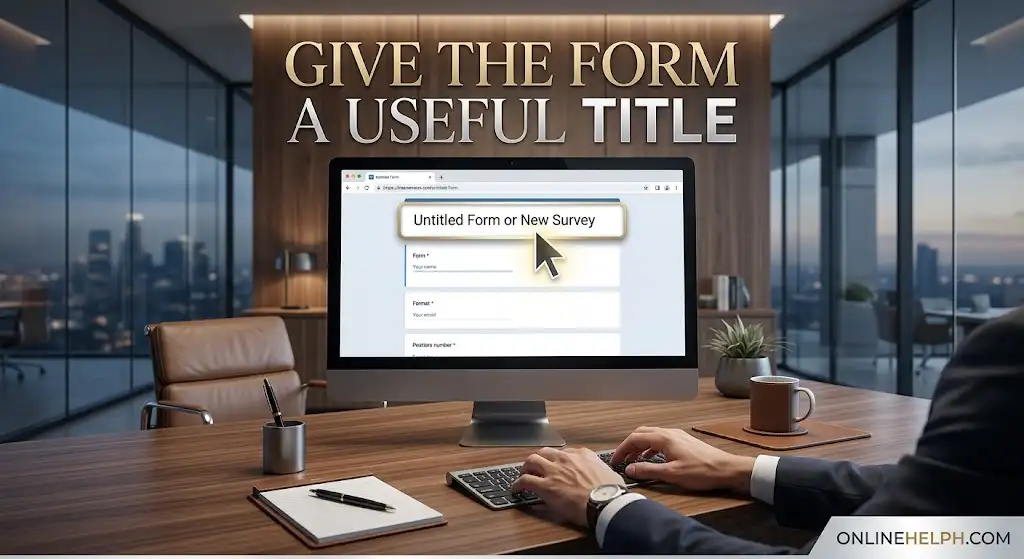
Step 2: Give the Form a Useful Title
Select the default form title, such as Untitled Form, and replace it with a clear name that tells respondents what they are completing.
A short description underneath the title can provide useful context. For example, you can explain:
You can also add an image, logo, or banner when visual branding is useful.
Step 3: Add Your Questions
Select + Add new to insert a question. microsoft survey forms provides several question formats, allowing you to match the input field to the type of information you need.
For each question:
Before publishing, read through the complete form from the respondent’s point of view. This often reveals unclear wording or unnecessary questions.

Which Microsoft Forms Question Type Should You Use?
The question format affects the quality of the information you collect. Choosing the right field can make responses easier to analyse and reduce incorrect entries.
| Question type | Best suited for | Main options |
|---|---|---|
| Choice | Single or multiple selections | Single selection, multiple answers, or dropdown-style choices |
| Text | Names, comments, explanations, and other written responses | Short or long answers; restrictions can be applied for numerical input |
| Rating | Satisfaction surveys and quick evaluations | Star or number-based ratings, with scales from 2 to 10 |
| Date | Dates, appointments, schedules, or birthdays | Date selection through a standard date picker |
| Ranking | Prioritising products, features, or preferences | Respondents arrange options in order |
| Likert | Statements requiring a consistent rating scale | Rows for statements and columns for response choices |
| Net Promoter Score (NPS) | Measuring customer loyalty | 0–10 scoring system categorising respondents as Detractors, Passives, or Promoters |
| File Upload | Resumes, photographs, receipts, and documents | File type, file-size, and number-of-file controls |
| Section | Long or multi-stage forms | Separates related questions into different parts |
Tip: Don’t choose a question type simply because it looks attractive. Select the format that makes the intended answer easiest for respondents to provide.
For example, asking someone to type a date manually can create inconsistent data. A Date question gives respondents a standard way to enter it.
Use Sections and Branching to Build Smarter Forms
Long questionnaires can become confusing when every respondent sees the same questions. Branching allows microsoft survey forms to change the next part of the form according to an earlier answer.
This is sometimes called conditional logic or skip logic.
How Microsoft Forms Branching Works
Are you an existing customer?
Someone answering Yes might need to provide customer details, while someone answering No could be directed to questions intended for new prospects.
To configure this type of flow:
Example of a Simple Branch
| Response | Destination |
| Yes | Client Details |
| No | New Prospect Survey |
Test every route before sending the form to respondents. Pay particular attention to questions that could accidentally create circular paths or prevent someone from reaching the submission stage.
Why Sections Matter
Sections are especially useful for longer surveys. Instead of presenting one large page of questions, you can group related items into logical stages.
For example:
Section 1: Personal Information
Section 2: Contact Details
Section 3: Preferences
Section 4: Additional Comments
This gives respondents a clearer sense of progress and makes complicated forms easier to navigate.
Review Settings Before You Share the Form
A form can be technically correct but still produce poor results if its access and response settings are wrong.
Open More Options (…) > Settings to review how people can access and complete the form.
Choose Who Can Respond
microsoft survey forms provides different access options, including:
Anyone can respond
This is suitable when you want the form to be available to the general public, such as for marketing feedback, public surveys, or general enquiries.
Only people in my organisation can respond
This option restricts participation to people within the relevant organisation and requires authentication with an organisational account.
Control Identity and Duplicate Responses
Depending on the selected access configuration, you can also control whether respondent names are recorded.
The Record name setting can capture respondent identity automatically. When anonymous responses are appropriate, this option can be left disabled.
The One response per person option can help prevent the same account from submitting multiple responses.
Important: Access settings should match the purpose of your form. A public survey should not accidentally be restricted to internal users, while an internal assessment may require authentication.
Control When the Form Accepts Responses
microsoft survey forms also provides options for managing when people can submit information.
You can:
A scheduled opening and closing time can be useful for registrations, limited-time surveys, and assessments.
For quizzes or timed activities, the duration setting can help establish a defined completion period.
Configure Notifications and Response Receipts
Response notifications can save you from repeatedly checking the form manually.
Depending on the available account and settings, you can configure options such as:
These features are particularly useful for registrations, applications, and other forms where respondents may need confirmation that their information was successfully submitted.
Ways to Share a Microsoft Form
When your form is ready, select Collect Responses to choose how respondents will access it.
Direct Link
Copy the form’s URL and share it through websites, email, messaging applications, or social media.
Where available, the Shorten URL option can make the address easier to share.
QR Code
microsoft survey forms can generate a QR code that respondents can scan with a compatible mobile device.
QR codes are particularly useful for:
Embed the Form on a Website
If you want the questionnaire to appear directly on a webpage, microsoft survey forms can provide an iframe embed code.
This allows visitors to interact with the form without necessarily leaving the website.
Email and Teams
You can also distribute the form through integrated communication options such as email or Microsoft Teams, depending on your account and environment.
Collaborate With Other People
microsoft survey forms can also support teamwork.
Share as a Template
A template-sharing option can allow another person to create a copy of your form structure without giving them access to your collected response data.
This is useful when a department, teacher, business, or research team wants to reuse the same questionnaire format.
Share to Collaborate
A collaboration link can allow authorised team members to work on the form together. Depending on the permissions provided, collaborators may be able to edit questions and review response information.
Before sharing an editing link, make sure it is given only to people who should have access to the form.
View and Understand Form Responses
After respondents begin submitting information, open the form and select the Responses area.
microsoft survey forms can present collected information through visual summaries such as:
The View Results option can be used when you need to inspect responses individually rather than relying only on aggregated charts.
Why Review Individual Responses?
Summary charts are useful for spotting patterns, but individual submissions can reveal details that a graph does not show.
For example, a customer survey might show that most respondents selected a high satisfaction rating. Reviewing individual comments can explain why respondents chose those ratings and identify issues that need attention.
Export Form Data to Microsoft Excel
When you need to work with the collected information outside microsoft survey forms, Excel provides a convenient option.
For personal accounts, Open in Excel can provide an .xlsx file containing the collected response data.
For eligible work or school environments, forms associated with OneDrive or Excel Online can support cloud-based synchronisation, allowing new responses to appear in the connected spreadsheet as they are collected.
Excel can then be used for additional sorting, filtering, calculations, reporting, or analysis.
Common Microsoft Forms Problems and Solutions
Even a correctly designed form can sometimes produce access or configuration problems. Here are several common situations.
Why Is File Upload Disabled?
One common reason is that the form is configured for public responses or is being used with a personal Microsoft account.
What to check:
File uploads require authenticated organisational accounts in the scenario described in the source material.
Why Does a Respondent See a Permission Error?
A message such as “You don’t have permission to view this form” can occur when the form is restricted to organisational users and the respondent is using a personal or external account.
The form owner can either:
Always check the intended audience before changing access settings, particularly when the form contains sensitive information.
How Do I Close a Microsoft Form?
If you no longer want to receive submissions, open the form’s Settings and disable Accept responses.
Another option is to configure an End Date so the form closes automatically.
You can also provide a message for people who visit the closed form, such as:
“This survey is now closed. Thank you for your interest.”
What Is the Response Limit?
According to the source information, the stated limits are:
| Account type | Stated response limit |
| Personal Microsoft Account | Up to 200 free responses |
| Microsoft 365 Enterprise / Education | Up to 50,000 responses per form |
Because microsoft survey forms features and account limits can vary by plan and service updates, check the applicable Microsoft account documentation if the response capacity is critical to your project.
Practical Tips for Better Online Forms
A technically functional form isn’t automatically a good form. The respondent’s experience matters just as much.
Make Questions Specific
Avoid vague questions that can be interpreted in several ways. Tell respondents exactly what you want them to provide.
Use Required Fields Carefully
Mark genuinely essential questions as required. Making too many fields mandatory can frustrate respondents, particularly when some information isn’t relevant to everyone.
Test Before Publishing
Use Preview to experience the form as a respondent. Test different answers, especially when branching is enabled.
Check the Mobile Experience
Many people complete online forms from their phones. Make sure questions are readable and that the form doesn’t become unnecessarily difficult to navigate on a small screen.
Keep the Flow Logical
Move from simple questions to more detailed ones where possible. Group related information together and use sections when the questionnaire becomes lengthy.
Protect Access
If a form contains confidential or internal information, don’t use unrestricted public access simply for convenience. Select the access model that fits the information being collected.
FAQS
Conclusion
Microsoft Forms provides a simple and practical way to create, share, manage, and analyse online forms without requiring advanced technical skills. From surveys, quizzes, registrations, and feedback forms to business and educational questionnaires, its flexible question types, branching, sections, response settings, sharing options, and Excel integration make it useful for a wide range of needs.
For the best results, focus on the purpose of your form, keep questions clear and relevant, choose the right question types, and test the complete form before sharing it. It is equally important to review access permissions, response settings, anonymity options, and mobile usability so respondents can complete the form without unnecessary difficulties.