
The Quezon City e-Services Portal provides an online access point for residents, students, business owners and property owners who need to manage local government transactions. Instead of visiting different offices for every enquiry, eligible users can use the official portal to explore available services, submit applications and review transaction information online.
Official website: https://qceservices.quezoncity.gov.ph/
This three-part guide covers portal registration, account access, document preparation, the QCitizen ID application, real property tax payments, business permits, troubleshooting and frequently asked questions. The instructions below are based on the supplied portal guide; actual features, document requirements and payment methods should be confirmed on the official website before starting a transaction. Visit Hompage
What Is the Quezon City e-Services Portal?
The Quezon City e-Services Portal, also called QC e-Services, is the online gateway identified in this guide for accessing digital services provided by the Quezon City Local Government Unit (LGU). It is intended to make local government transactions more convenient by allowing users to access supported services through an internet-connected device.
The portal is relevant to people who live, study, work, operate a business or own property in Quezon City. Depending on the service and eligibility requirements, users may be able to submit applications, check transaction updates and manage certain payments online.
What can you do through QC e-Services?
The supplied guide identifies several important service categories:
Not every service follows the same procedure. Some may require supporting documents, additional assessment or an in-person visit. Always read the instructions shown for your selected service rather than assuming that every transaction can be completed entirely online.
Who Should Use the QC e-Services Website?
The portal may be useful to several groups of people, although each service has its own eligibility rules.
| User group | Possible reason for using the portal |
|---|---|
| Quezon City residents | Explore QCitizen ID and eligible city services |
| Students | Check relevant scholarship or assistance services |
| Entrepreneurs and business owners | Apply for or renew eligible business permits |
| Employees working in Quezon City | Find applicable occupational permit services |
| Property owners | Review real property tax services and payment options |
| Other eligible applicants | Access services connected to work, study or property in the city |
Non-residents may also be eligible to access particular services if they work, study, conduct business or own property in Quezon City. However, account registration does not automatically make someone eligible for every programme.
Benefits of Using QC e-Services
Using the online portal can make routine administrative tasks easier to organise. Its main advantage is that users can begin with a central website instead of having to locate a separate online entry point for every service.
Key benefits include:
These benefits depend on the service selected, portal availability and the procedures currently in place. Online submission does not necessarily mean immediate approval.
Requirements Before Registering for QC e-Services
Preparing your information before opening an application can help prevent delays caused by missing documents or incorrect entries. The exact requirements depend on whether you are applying for an ID, requesting a business permit or paying property tax.
Technical requirements
Before using the official QC e-Services website, make sure you have:
Use your own email address and mobile number wherever possible. These details may be needed to verify your account, receive notifications or recover access if you forget your password.
Documents to prepare by service type
The following checklist is based on the supplied guide. It is a preparation aid, not a guarantee that every listed document will be required.
| Applicant or transaction | Documents and information to prepare |
|---|---|
| QCitizen ID or resident services | Valid government-issued ID, proof of Quezon City address and a digital ID photo |
| Business permit application | DTI or SEC registration, Barangay Business Clearance and applicable business records |
| Business permit renewal | Existing permit or Business Account Number (BIN), previous-year records and gross sales declaration |
| Real Property Tax payment | Tax Declaration Number (TDN), Property Index Number (PIN) if requested, and recent tax receipts |
| Occupational or health permits | Personal details and the supporting documents specified for the relevant permit |
Practical tip: Check the current document requirements on the official portal before scanning or uploading files. The supplied guide mentions PDF, JPEG and PNG formats and a possible 5 MB per-file limit, but you should confirm the active upload restrictions on the application page.
How to Create a QC e-Services Account
An account may be needed to access personalised services, submit applications or review transaction records. The precise labels and verification steps can vary depending on the portal’s current interface.
Follow this general registration process.
Step 1: Open the official QC e-Services portal

Visit https://qceservices.quezoncity.gov.ph/ using your preferred browser.
Check the website address before entering personal information. Avoid unofficial websites that imitate government portals or ask you to provide sensitive information without a clear reason.
Step 2: Find the registration option
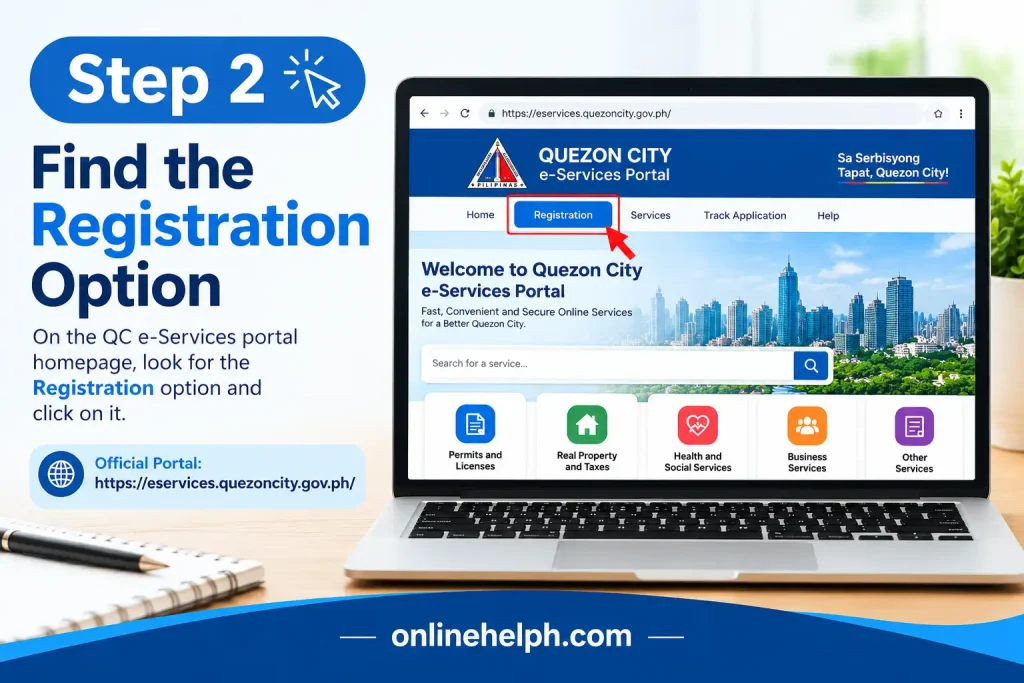
Look for a button labelled Sign Up, Register or another account-creation option. Follow the instructions displayed on the website.
If you already have an account, try signing in instead of creating a duplicate account. Multiple accounts can make it harder to manage applications or identify which profile contains your records.
Step 3: Enter your personal information
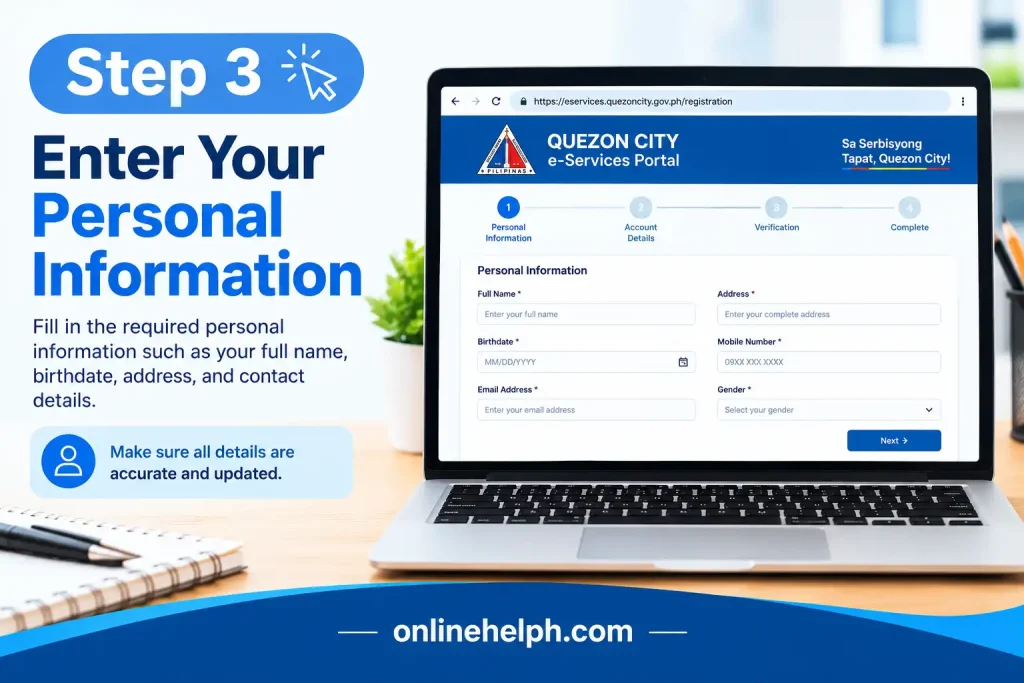
Complete the registration fields that appear on the screen. Depending on the form, these may include:
Enter your details carefully and make sure they match your supporting documents where required. Incorrect spelling, outdated contact information or an incomplete address may create problems during identity verification or application review.
Step 4: Set up your login credentials

Create a strong password using the requirements displayed by the portal. The supplied guide recommends a password of at least eight characters, combining uppercase and lowercase letters, numbers and special characters.
Do not reuse a password from another account. Keep your credentials private, and never share a one-time password (OTP) with someone claiming to be a support representative.
Step 5: Complete any required verification

The portal may ask you to verify your email address or mobile number. Follow the instructions actually displayed on the website, including entering an OTP if requested.
If a verification message does not arrive, check your email’s spam folder, confirm that your contact details are correct and wait briefly before requesting another code.
Step 6: Sign in and review your profile

After completing the required registration steps, return to the portal’s login page and enter your credentials.
If a profile section is available, review your personal information and complete any required fields. Upload identity documents only when requested through the appropriate official service.
Important: The exact registration buttons, verification methods and password rules should be confirmed on the live portal. The steps above explain the general process and should not be treated as confirmation of a particular screen layout.
How to Log In to Your QC e-Services Account
Once your account has been registered, you can use the official QC e-Services Portal to access the services available to your profile. Keep your registered email address or mobile number and password ready before attempting to sign in.
Follow these login instructions
- Open the official website. Visit qceservices.quezoncity.gov.ph in your browser.
- Select the login option. Choose the sign-in button displayed on the website.
- Enter your account details. Provide the registered email address or mobile number and your password, as requested.
- Complete additional verification. If the portal requests an OTP or another security check, follow the on-screen instructions.
- Access your account dashboard. After successful authentication, look for the service menu, profile section or application records available to your account.
If you cannot log in, check that you have entered the correct credentials and that your keyboard settings are not changing the password unexpectedly.
What if you forget your password?
Use the password recovery option provided on the official login page.
If the recovery message does not arrive, check your spam folder and confirm that you entered the correct contact information. Avoid repeatedly submitting reset requests within a short period, as this may create confusion or trigger temporary restrictions.
Managing Your Profile and Tracking Applications
Your account details help identify you when you use the QC e-Services Portal. Before applying for a permit, ID or other city service, review your profile and check that the information is accurate.
Where these features are available, you may be able to:
How to check your application status
Sign in to your account and look for a section labelled My Applications, Transaction History or a similar option. Open the relevant transaction and read the latest status and any instructions attached to it.
The meaning of each status depends on the service. For example, a pending application generally means that further processing is outstanding; it should not be interpreted as an approval. If the portal requests additional information, follow the instructions and submit the required documents through the designated channel.
Keep a copy of your application reference number. It can help the relevant city office identify your transaction if you need assistance.
Applying for a QCitizen ID Online
The QCitizen ID is a city identification programme intended to support access to eligible Quezon City services and benefits. If you plan to apply through the QC e-Services Portal, prepare your personal information and supporting documents before starting.
Use the official QC e-Services website to check whether the application is available and review its current eligibility rules.
Documents to prepare
Depending on the requirements displayed for your application, you may need:
Not every document listed here will necessarily be required for every applicant. Follow the official application checklist, particularly if your circumstances require a different form of identification or proof of address.
Step-by-step QCitizen ID application
CNSS Maroc : créer son compte et suivre ses droits- Publimaroc
Step 1: Open the QCitizen ID service
Visit the official QC e-Services Portal and sign in if required. Look for the QCitizen ID application or the corresponding service category.
SSC OTR Registration 2026: Aadhaar, Process & Errors | TrueJobs
Step 2: Check your personal details
Enter or confirm your full name, address and other requested information. Compare the entries with your supporting documents to reduce the risk of inconsistencies.
Passport and Visa in Bhutan: Requirements & Guide | Luxury Holidays Nepal
Step 3: Upload the required documents
Submit the accepted identity document, proof of address and digital photo if requested. Ensure that each image is readable, correctly oriented and uploaded in an accepted file format.
Join Us – Tanisha Systems Inc.
Step 4: Review and submit your application
Check the completed form, read the applicable privacy notice and submit the application if all information is correct. Save the reference or tracking number provided by the portal.
What happens after submission?
Submitting the QCitizen ID application does not necessarily mean that your ID is immediately approved or issued. The city may need to review your information, validate documents or request corrections.
After submitting your application:
If you encounter an application problem, contact the appropriate official support channel rather than submitting another application immediately.
How to Pay Real Property Tax (Amilyar) Online
Real Property Tax (RPT), commonly known as amilyar, is a tax on taxable real property, including land, buildings and other qualifying improvements. Quezon City property owners can use the official e-Services platform to access the online payment process.
The city’s published Real Property Tax payment guide explains the current online procedure and supporting documents. Quezon City Government
Requirements for online RPT payment
Prepare the following before starting:
The TDN is particularly important because it allows the system to locate the relevant property record. Check the number against your existing tax documents before submitting it.
Step-by-step RPT payment process
Sign in to the QC e-Services Portal and select RPT Payment (Amilyar) if available.
Enter your Tax Declaration Number and verify the property owner’s name.
Review the property details, outstanding tax amount, and applicable tax declaration records.
Select the relevant property records and add them to your cart as instructed by the portal.
Confirm the total amount due and choose an available payment method.
Follow the payment gateway’s instructions to complete the transaction.
Email a photo of your payment proof and reference slip to [email protected], following the city’s published instructions.
Keep your payment confirmation and follow the city’s instructions for receiving or collecting the official receipt.
If you cannot find your property record or encounter a payment issue, contact the appropriate Quezon City office for assistance.
What payment methods can you use?
Quezon City’s QC Pay Easy programme supports electronic payments through options that include GCash, Maya, online banking and Visa or Mastercard, subject to the transaction and payment gateway. Quezon City Government
Before paying, confirm which methods appear on the live payment screen. Do not assume that every bank or e-wallet will be available for every transaction.
What if your Tax Declaration Number is not found?
The official RPT guide instructs taxpayers whose TDN is missing from the online system to contact [email protected] and request assistance with adding the record. Quezon City Government
When contacting the city, provide the relevant property reference information requested by the office. Avoid sending unnecessary personal documents or payment credentials.
Keep in mind: A payment confirmation is not necessarily the same as an official receipt. Follow the city’s instructions for obtaining the receipt and retain both records until the transaction is fully documented.
How to Apply for or Renew a Quezon City Business Permit
The QC e-Services Portal also provides access to business permit transactions through the Business One-Stop-Shop (BOSS). Business owners can use the platform to explore the process for a new application or renewal, submit required information and access available payment services.
Start at the official QC e-Services Portal. For additional instructions, consult the Quezon City Government website and locate the relevant business tax or permit guide.
Documents and information to prepare
Depending on your business and application type, you may need:
Requirements can differ between new businesses, renewals and different business activities. Check the current official checklist before submitting your application.
Application and Renewal Procedure
Open the business permit service: Sign in to the QC e-Services Portal and locate the Business One-Stop-Shop or business permit section.
Choose the correct application type: Select the new business permit application or renewal option that matches your circumstances.
Enter your business information: For renewals, provide your existing Business Identification Number (BIN) or other requested reference details. Verify your business name, address, and other information.
Declare the required financial information: Enter the gross sales, receipts, and other financial details requested by the form. Use accurate business records when actual figures are required.
Upload the supporting documents: Attach the required business registration documents, clearances, and financial records in the formats accepted by the portal.
Submit the application for assessment: Review all information before submitting your application. Save the confirmation message or reference number for future tracking.
Check the assessment and payment instructions: Review the Tax Order of Payment (TOP), if issued, and follow the official payment instructions provided by Quezon City.
Monitor the application status: Sign in to your account regularly to check updates or requests for additional information. Follow the responsible office’s instructions before considering the application process complete..
Tips for avoiding business permit delays
Business owners should also confirm the current permit renewal deadlines, fees and documentary requirements through official Quezon City channels, as these may depend on the type of business and applicable regulations.
Frequently Asked Questions About QC e-Services
Conclusion
The Quezon City e-Services Portal makes accessing local government services more convenient by allowing residents, eligible non-residents, business owners, employees, and other qualified applicants to complete various transactions online. From creating an account and applying for a QCitizen ID to paying real property taxes, processing business permits, and accessing occupational or health-related services, the platform helps reduce the need for unnecessary in-person visits.
To get the best results, always use the official website at https://qceservices.quezoncity.gov.ph/, provide accurate personal and business information, prepare the required documents, and carefully review your application before submitting it. Keep your reference numbers, payment confirmations, and application updates so you can track your transaction and address any issues promptly. Remember that processing times, requirements, fees, and available payment methods may vary depending on the service.
Whether you are applying for a permit, checking your QCitizen ID status, or managing your property tax obligations, understanding how the Quezon City e-Services Portal works can save time and make your government transactions easier to manage. Bookmark the official portal, follow the latest instructions from Quezon City Government, and use this guide as a reference whenever you need help navigating its online services.
Read More
Philippine National ID Guide 2026: Registration, Digital ID, Requirements and Verification
Oxecure Philippines Guide 2026: Registration, Skincare Products, Orders and Delivery
GSIS Portal Guide 2026: Registration, Login, Loans, Pension and Online Services
SEC eSPARC Online Company Registration Guide 2026: Requirements, Application Process, Fees & Certificate
Marriage Contract: Complete PSA Marriage Certificate Guide 2026