
philippine national identity card, officially known as the PhilSys National ID, provides Filipino citizens and eligible resident aliens with a government-recognised identity credential. It can help simplify identity verification when accessing public services, financial services and other transactions that require proof of identity.
Whether you are registering for the first time, waiting for your physical National ID card, or trying to access your Digital National ID online, understanding the correct process can save time and prevent common mistakes.
This guide focuses on the philippine national identity card, including registration requirements, official online portals, biometric enrolment, digital access and identity verification. For accurate information, use the official Philippine government resources rather than unfamiliar websites. Visit Homepage
What Is the Philippine National ID (PhilSys)?
the philippine national identity card (PhilSys) is the national identification system established under Republic Act No. 11055, also known as the Philippine Identification System Act. It was introduced to provide a reliable way to establish and verify a person’s identity across different government and private-sector transactions.
the philippine national identity card connects an individual’s registered demographic information with the identity record maintained under PhilSys. The Philippine Statistics Authority (PSA) is responsible for implementing the system.
The National ID is intended to make identity verification more convenient. Instead of relying on several different identification documents for different transactions, eligible individuals can use their National ID where the receiving organisation accepts it.
Official Philippine National ID websites
Use these government resources when registering, accessing your digital credential or checking its authenticity.
PhilSys Official Information Website
Announcements, registration information and National ID guidance.
Visit philsys.gov.ph
Digital National ID Portal
Access the official online service for the Digital National ID.
Visit national-id.gov.ph
PhilSys Check
Use the verification service to check an eligible National ID QR code.
Visit verify.philsys.gov.ph
eGovPH Mobile Application
An alternative official channel for accessing supported government digital services.
Find official eGovPH information.
What Are the Different Types of Philippine National ID?
The National ID programme offers different formats intended to make identity credentials accessible to registered individuals. Knowing the differences helps you choose the appropriate way to access your information.
1. Physical National ID
This is the physical card issued through the PhilSys registration and delivery process. Registered individuals may need to wait for processing and delivery before receiving their card.
2. Printed ePhilID
The ePhilID is a printed version of the National ID provided through authorised channels. Availability and the method for obtaining a printed copy may depend on current PSA arrangements.
3. Digital National ID
The Digital National ID is an electronic identity credential accessible through official digital channels. It can be useful when the physical card has not yet arrived, provided you can complete the required identity verification.
The Philippine government has recognised the National ID in its physical and digital forms as valid proof of identity, subject to applicable rules and the verification requirements of the receiving organisation. If a bank, agency or other institution has questions about a digital credential, direct its staff to the official verification process.
Philippine National ID Requirements: Who Can Register?
Eligibility and document requirements should be confirmed through official PhilSys announcements before visiting a registration centre. The applicable requirements can differ depending on whether the applicant is a Filipino citizen, a resident alien or a child.
Documents Filipino citizens may use
Applicants should bring an acceptable original supporting document. Examples listed in PhilSys guidance have included:
The examples above are not a guarantee that every document remains acceptable under every current registration arrangement. Check the latest official PSA requirements before travelling, particularly if you intend to use secondary documents.
Requirements for resident aliens
Eligible resident aliens must follow the applicable PhilSys rules for foreign nationals. Depending on their circumstances, acceptable documents may include an Alien Certificate of Registration Identity Card (ACR I-Card), an Immigrant Certificate of Residence, a Special Resident Retiree’s Visa or a valid foreign passport with the required immigration documentation.
Confirm eligibility and the current document list with the PSA because not every foreign national or visa category necessarily qualifies.
National ID registration for children
Children may also be registered under PhilSys. The documentation and biometric requirements depend on the child’s age.
For younger children, a birth certificate and information linking the child’s record to a parent or legal guardian may be required. The registration process may differ from that used for older applicants because biometric capture requirements are age-dependent.
Before you go: Bring the original documents requested by the registration centre. Carrying photocopies may be useful, but a photocopy should not be assumed to replace an original document when original verification is required.
How to Register for the Philippine National ID
The registration process involves checking your documents, visiting an authorised registration centre, confirming your personal information and completing the required biometric capture. Registration is free through official PhilSys channels.
Step 1: Prepare your supporting documents

Before visiting a registration centre, review the official document list on the PhilSys website.
Preparing in advance can help prevent a wasted trip if your documents are incomplete.
Step 2: Find an authorised PhilSys registration centre

Visit the official PhilSys Registration Process page to review the registration procedure and available centre information.
Registration locations have included:
Registration schedules and locations may change. Confirm that your chosen centre is operating before travelling, and ask whether an appointment is needed.
Step 3: Submit your information and complete biometric capture

At the registration centre, a Registration Kit Operator will guide you through the required steps.
Your details should match your supporting documents. Correcting a mistake early is preferable to discovering it later when trying to access your digital credential or use the National ID.
Step 4: Review your details and keep your transaction slip
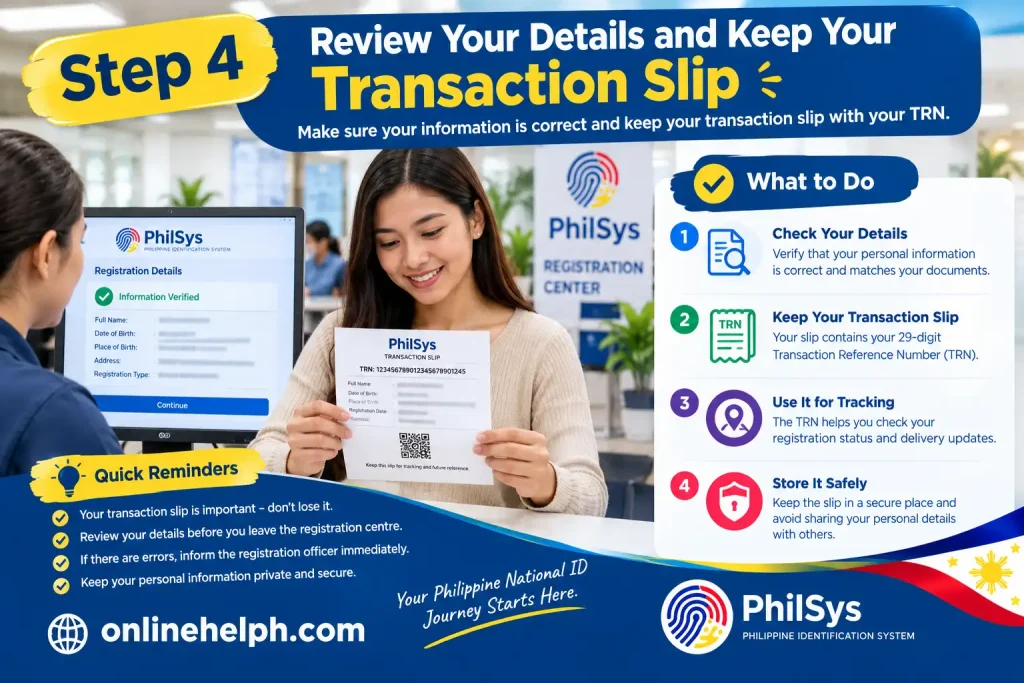
Before leaving, check that your personal information has been recorded correctly and keep the transaction slip issued by the registration centre.
The slip contains your Transaction Reference Number (TRN). This reference can help you track the status of your registration or National ID delivery and check the availability of an applicable paper-format credential.
Keep the slip somewhere safe. Do not post a photograph of it publicly or share your personal identification details with unknown individuals.
How to Access Your Digital National ID Online
Already registered with PhilSys but still waiting for the physical card? You may be able to access your Digital National ID through the official portal or the eGovPH mobile application.
The Digital National ID service uses demographic information and facial verification to establish that the person requesting access matches the registered identity.
Step 1: Open the official Digital National ID website
Go to https://national-id.gov.ph/ using a browser on your phone, tablet or computer.
Step 2: Give consent and enter your personal information
Follow the instructions shown on the portal and review the privacy notice before proceeding.
The portal’s current instructions determine which fields are required. Do not assume that the TRN alone will always be sufficient to retrieve a Digital National ID.
Step 3: Complete the facial verification process
The system may ask you to complete a live facial check to confirm your identity.
If the check fails, try again under better lighting and ensure your camera lens is clean. Repeated failures may require further assistance through official PSA support channels.
Step 4: View and save your Digital National ID
Once your identity has been verified, follow the available instructions to view your Digital National ID.
The digital credential can be useful while waiting for a physical card, but successful access depends on your registration record and completion of the required verification process.
Continue to Part 3 for National ID verification, common problems, safety tips, frequently asked questions and the article’s final SEO details.
How to Verify Your Philippine National ID
National ID verification helps organisations check whether an ID credential is authentic. If you need to present your Philippine National ID for a bank account, government application or another transaction, make sure you understand how its QR code can be authenticated.
The PSA has introduced official authentication services, including National ID Check and National ID eVerify. The current official verification options should be checked through the PhilSys website.
Steps to verify a National ID
Use the current official National ID Check service at everify.gov.ph/check when directed by the PSA. Never rely solely on an image of an ID when formal authentication is required.
Common Philippine National ID Problems and Solutions
| Problem | What you can do |
|---|---|
| Digital ID facial verification fails | Improve lighting, clean your camera lens and follow the live verification instructions carefully. |
| Your registration details are not recognised | Check the spelling of your name and date of birth. If the problem persists, contact the PSA through official channels. |
| Your physical card has not arrived | Keep your TRN and use the official registration or delivery-tracking guidance available from PhilSys. |
| You have lost your transaction slip | Contact an authorised PSA office to ask about the available procedure for recovering your registration reference. |
| An organisation questions your Digital National ID | Direct the organisation to the official authentication service and relevant PSA guidance. |
| Your National ID contains incorrect information | Ask the PSA about the official updating or correction procedure rather than registering again. |
How to Check Your National ID Registration and Delivery Status
After completing PhilSys registration, many applicants want to know when their physical Philippine National ID will arrive or whether their registration record is ready for digital access.
The process depends on your registration status and the information available in the PSA system. Keep your Transaction Reference Number (TRN) from the registration slip, as it may be needed when checking your record or following up on delivery.
Follow these steps:
A delayed status update does not necessarily mean that your registration has failed. Processing and delivery can take time, and you should rely on current PSA guidance rather than unofficial estimates.
What Should You Do If Your Physical National ID Has Not Arrived?
If you have already registered but have not received your physical card, you may still have options for accessing an official identity credential.
Do not register a second time simply because your physical card has not arrived. Ask the PSA to clarify your existing record first.
Philippine National ID Guide 2026
How to Download Your Digital National ID
The Digital National ID allows eligible registered individuals to access an electronic version of their identity credential without waiting for the physical card. According to the Philippine Statistics Authority (PSA), registered individuals can access it through the official website or the eGovPH mobile application.
Follow these steps to access your Philippine National ID online.
Step 1: Visit the official Digital National ID portal
Step 2: Provide consent
Step 3: Enter your personal information
Step 4: Complete facial authentication
Step 5: View and save your Digital National ID
These steps follow the procedure published by the PSA. The exact screen layout and available options may change as the government updates its online services.
Can You Access the Digital National ID Through eGovPH?
Yes. The eGovPH mobile application is another official channel for accessing supported National ID services.
To get started:
The steps within the application may differ from the website procedure. For the latest guidance, consult the PhilSys official website and the PSA.
How to Verify a Philippine National ID Using Its QR Code
The Philippine National ID includes a QR code that can be used for authentication. Verification helps a receiving organisation establish whether the credential and its associated information are genuine.
The PSA provides National ID authentication services for eligible relying parties. The public can also use the official National ID Check service to authenticate a Digital National ID QR code.
Follow these steps:
Do not rely only on a screenshot or visual appearance to determine whether an ID is authentic. Use the official authentication process when verification is required.
What Should You Do If Your Digital National ID Cannot Be Generated?
Sometimes, the portal may not recognise your details or the facial verification process may fail. These problems do not automatically mean that your PhilSys registration is invalid.
Try the following solutions:
Never give your password, one-time security codes or sensitive identity information to strangers who promise to generate your Digital National ID for a fee.
Important Things to Remember About PhilSys
Before moving to the final part of this guide, keep these points in mind:
FAQs About the Philippine National ID (2026)
Conclusion
The Philippine National ID (PhilSys) is an important government-issued identification system designed to make identity verification easier and improve access to public and private services. Whether you are applying for your first National ID, checking your registration details, accessing the Digital National ID, or verifying your identity online, understanding the correct process can help you avoid unnecessary delays and mistakes.
To get started, visit the official PhilSys website to review registration information and requirements. If you already registered, you can explore the Digital National ID portal and use the official National ID Check service to verify your ID where applicable. Always enter accurate personal information, protect your details, and avoid unofficial websites that request unnecessary payments or sensitive information.
Remember, Philippine National ID registration is free, and you should not register again simply because your physical card has not arrived. Use official government channels for updates, verification, and corrections. By following this Philippine National ID guide, you can better understand the registration process, available ID formats, and verification options—and make the most of the PhilSys program in 2026.
Read more
Oxecure Philippines Guide 2026: Registration, Skincare Products, Orders and Delivery
SEC eSPARC Online Company Registration Guide 2026: Requirements, Application Process, Fees & Certificate
Marriage Contract: Complete PSA Marriage Certificate Guide 2026
PhilSys Registration 2026: National ID Requirements, Registration Process & Status Guide
PEZA Website: Complete Guide to Registration, Online Services, Requirements & Economic Zones